
A wireless screen casting adapter may appear correctly connected yet still show no image. In many cases, the adapter is not defective. The actual cause is that the source device’s USB-C port does not support DisplayPort Alternate Mode, commonly called DP Alt Mode.
DP Alt Mode allows a USB-C port to carry a native DisplayPort audio and video signal. Without it, the port may still charge a device and transfer files, but it cannot send video to a transmitter, monitor, TV, or projector. VESA defines DisplayPort Alt Mode as the method that enables DisplayPort video over USB-C, while Dell confirms that a non-compatible port sends no video data to the display.
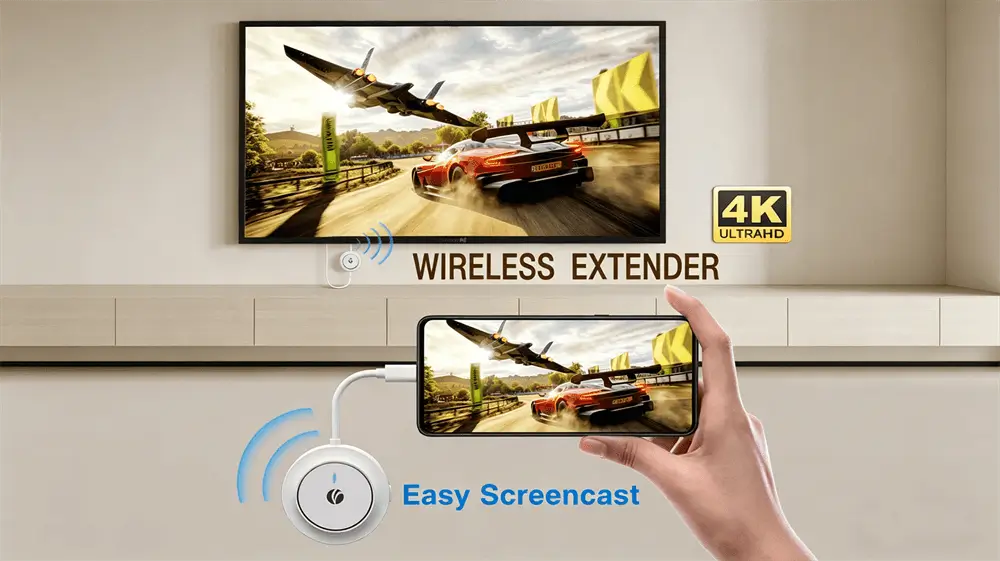
What Does DP Alt Mode Have to Do with Wireless Casting?
The word wireless describes the connection between the transmitter and receiver, not necessarily the connection between the source device and transmitter.
The VCOM DD543 ScreenCast uses a USB-C transmitter connected to a laptop, tablet, or smartphone. The transmitter must first receive video from the host device. It then encodes the signal and sends it through a direct 5GHz wireless link to the HDMI receiver. The receiver decodes the signal and outputs it to a TV, monitor, or projector. No router, internet connection, or casting app is required.
If the USB-C port cannot output video, the transmitter has nothing to capture. The wireless link may power on normally, but the display will remain black or show “No Signal.” This compatibility principle also applies to USB-C-to-HDMI adapters and many USB-C docking stations.
Why Do Identical USB-C Ports Have Different Capabilities?
USB-C describes the connector's feature set. One port may support only charging. Another may support charging and USB data. A more capable port may also support DP Alt Mode, USB4, or Thunderbolt.
This is why two visually identical ports can behave differently with the same accessory. A label such as “USB 3.2” describes data capability; it does not automatically guarantee video output. Device documentation should explicitly mention DisplayPort, video output, USB4, or Thunderbolt support.
How to Check Whether a USB-C Port Supports DP Alt Mode
1. Check the Exact Device Specification
Search the manufacturer’s support page using the full model number. Look for terms such as:
DisplayPort over USB-C
DP Alt Mode
USB-C video output
External display support
Thunderbolt 3, Thunderbolt 4, or USB4
The exact model matters because manufacturers may use different port configurations across regional or processor variants.
2. Inspect the Port Markings
A DisplayPort “DP” symbol near the port usually indicates video output. A Thunderbolt lightning symbol is also a strong sign of display support. Missing markings do not always prove that video is unavailable, so the manual remains the more reliable source.
3. Test with a Known-Good Display Cable
Connect the device directly to a monitor or TV using a tested USB-C-to-HDMI or USB-C-to-DisplayPort cable. If the operating system detects the display and produces an image, DP Alt Mode is working.
Verify the cable and display with another compatible device before blaming the port. This simple cross-test separates a host compatibility issue from a faulty cable or display input.
4. Check Every USB-C Port
On some laptops, only one USB-C port supports video. Test the port identified in the manual rather than assuming all ports have equal functions.
What Should You Do If the Device Does Not Support DP Alt Mode?
A passive USB-C adapter cannot add a video signal that the host does not generate. Replacing the cable, adding a USB-A-to-USB-C adapter, or repeatedly pairing the wireless receiver will not solve this hardware limitation.
The practical alternatives are:
Use a native HDMI or DisplayPort output. If the laptop has HDMI or DP, choose a wireless HDMI system with a matching transmitter input.
Use a DisplayLink-based dock or adapter. DisplayLink creates display output through USB data rather than native DP Alt Mode. It requires compatible DisplayLink hardware, software, and operating-system support.
Use software-based casting. Windows devices may support Miracast, while compatible Apple devices can use AirPlay. These options depend on the capabilities of both the source and receiving display and may require a suitable wireless network or receiver.
Use another source device. For plug-and-play presentations, a laptop, tablet, or phone with confirmed USB-C video output is usually the simplest solution.
Why Choose the VCOM DD543 for Compatible Devices?
When the source supports DP Alt Mode, the VCOM DD543 ScreenCast provides a practical cable-free display solution. It creates a direct 5GHz 802.11ac connection, supports output up to 4K at 30Hz, offers mirror and extended-display modes, and reaches up to 30 meters in an open environment.
It also supports USB-C PD 3.0 charging passthrough, allowing a compatible laptop, tablet, or phone to remain powered during presentations, classes, or video playback.
Frequently Asked Questions
Can a Firmware Update Add DP Alt Mode?
Usually not. DP Alt Mode depends on the device’s physical port wiring, controller, graphics architecture, and firmware implementation. An update can enable the function only when the required hardware is already present.
Does USB-C Charging Prove That Video Output Is Supported?
No. Charging, USB data transfer, and video output are separate capabilities. A USB-C port can support one or two of these functions without supporting all three.
Will the Adapter Damage an Unsupported Device?
No. Connecting a display accessory to a USB-C port without DisplayPort support normally results in no image. It does not damage the host device, although the operating system may show an incompatibility warning.
Why Does the Adapter Light Up If the Port Is Incompatible?
Power delivery and video output use different functions within the USB-C connection. The transmitter may receive enough power to switch on even though the host is not supplying a display signal.
Tag:Wireless Screen Casting


Related Products
 | |
| 4K Wireless HDMI Extender | |
 |  |
 | |
| Wireless HDMI Extender | |
| |
 | |
| 4K Wireless HDMI Extender | |
| |