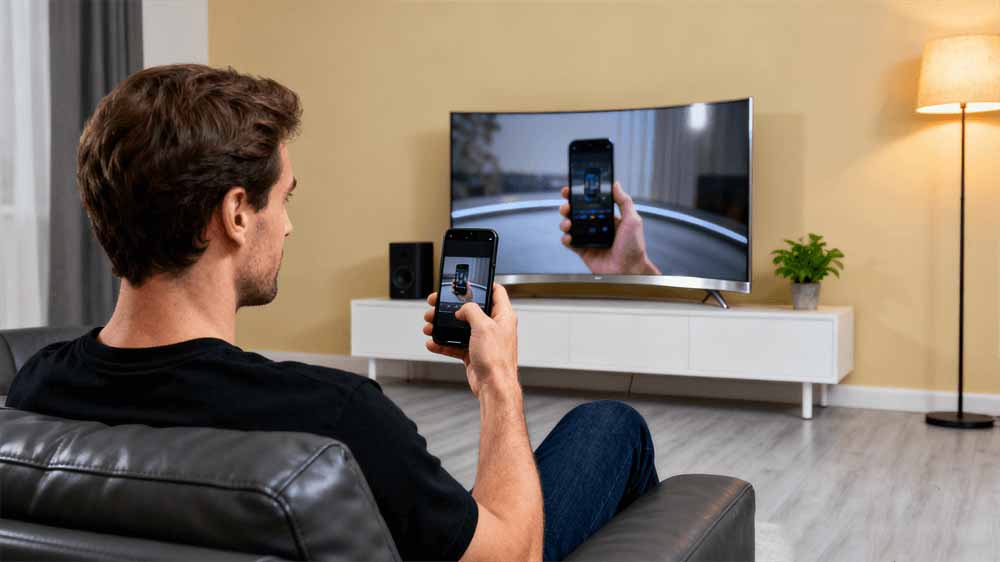
In the realm of modern electronics, screen casting stands out as a pivotal feature for enhancing media consumption. This process, often referred to as screen mirroring, permits the wireless or wired transmission of content from a smartphone directly to a television screen. Whether streaming a favorite show, sharing photos with family, or presenting a slideshow, screen casting bridges the gap between portable devices and larger displays. As electronics evolve, methods have become more accessible, supporting both Android and iOS ecosystems with minimal setup.
Wireless Screen Casting Methods
Wireless options dominate due to their convenience, eliminating the need for cables. These methods leverage Wi-Fi networks and built-in protocols to achieve seamless connectivity.
1. For Android Devices
Android devices offer versatile wireless casting through built-in features and apps. The primary method involves Google Cast, integrated into many smart TVs and streaming devices.
To cast using the Google TV app:
Ensure the Android phone and TV are on the same Wi-Fi network.
Open the Google TV app on the phone.
Tap "TVs nearby" near the bottom right.
Select the target device.
Enter the code displayed on the TV.
Pair the devices for control and casting.
For Miracast-enabled TVs:
Navigate to Settings > Display > Cast Screen on the Android device.
Select the TV from the list to initiate mirroring.
Confirm the connection on the TV if prompted.
Samsung devices utilize Smart View:
Open Settings > Connected Devices > Smart View.
Choose the Samsung TV and allow the connection.
Using streaming devices like Chromecast:
Connect the Chromecast to the TV's HDMI port and set it up via the Google Home app.
In a supported app (e.g., YouTube or Netflix), tap the Cast icon.
Select the Chromecast device to stream.
2. For iOS Devices (iPhone and iPad)
iOS relies on AirPlay for wireless streaming, compatible with Apple TV or AirPlay 2-enabled smart TVs.
To mirror the screen:
Connect the iPhone or iPad to the same Wi-Fi as the TV or Mac.
Open Control Center (swipe down from the upper-right on newer models or up from the bottom on older ones).
Tap the Screen Mirroring button.
Select the TV from the list.
Enter the AirPlay passcode if displayed on the TV.
For streaming specific videos:
Open the video app.
Tap the AirPlay button (or Share then AirPlay in some apps).
Choose the TV.
To stop, tap AirPlay and select the iPhone or iPad.
Automatic AirPlay can be enabled in Settings > General > AirPlay & Continuity > Automatically AirPlay, with options for Never, Ask, or Automatic.
Samsung TVs (2019 and later) support AirPlay for Apple devices:
Open Photos or a music app.
Tap the Share or AirPlay icon.
Select the TV and enter the code if needed.
3. More Methods
VCOM Screencast Extender:
For extended wireless mirroring, the VCOM DD546 ScreenCast supports 4K UHD via HDMI 1.4 and dual-band Wi-Fi. Connect the transmitter to the phone's USB-C (if supported) or HDMI output device, and the receiver to the TV. It enables plug-and-play mirroring up to 30 meters, ideal for smartphones. Similarly, the DD543 offers 4K wireless HDMI extension for phones and tablets. Transmission distances reach 50 meters in some models, with resolutions up to 1080P@60Hz or 4K.
Wired Screen Casting Options
Wired connections provide stability, ideal for environments with poor Wi-Fi. These require adapters and HDMI cables.
1. For Android phones:
Acquire a USB-C to HDMI adapter (or Micro-USB for older models).
Connect the adapter to the phone's USB port.
Attach an HDMI cable from the adapter to the TV's HDMI port.
Switch the TV input to the corresponding HDMI channel.
The phone's screen will mirror automatically.
2. For iPhones:
Use Apple's Lightning Digital AV Adapter and connect it to the iPhone's Lightning port. (For iPhone 15 and above, directly use the VCOM USB-C to HDMI cable)
Plug an HDMI cable into the adapter and the TV's HDMI port.
Select the HDMI input on the TV.
Enter any passcode if prompted for mirroring.
Troubleshooting Common Issues
Connectivity problems often arise from network mismatches or outdated software. Verify both devices are on the same Wi-Fi and restart them if needed. For AirPlay, ensure iCloud login matches on compatible devices. If the Cast icon is absent, check app support and Wi-Fi stability. Lag during mirroring can be mitigated by closing background apps or positioning devices closer to reduce interference. For wired setups, inspect cables for damage and confirm adapter compatibility.
Best Practices and Tips
To optimize screen casting, update all firmware and apps regularly for enhanced compatibility. Adjust the phone's resolution to match the TV's for better visuals. For gaming or presentations, wired methods minimize latency. Experiment with protocols like Miracast for non-Google ecosystems. Position devices optimally to avoid signal drops, and use reliable brand adapters(like VCOM) for wired connections.
Tag:Screencast,HDMI


Related Products
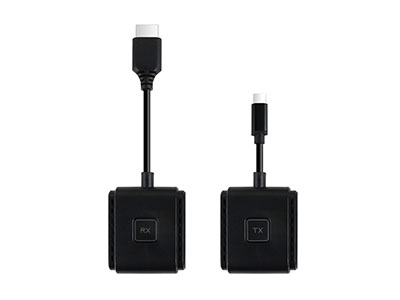 | |
| Wireless HDMI Extender | |
 |  |