Dear VCOM Users,
We appreciate your continued trust in our products. Recently, following the release of macOS Tahoe 26.1, we've received reports from users around the world experiencing issues such as mounting failures, missing drive icons, and inconsistent device recognition. This problem has impacted external SSD enclosures across nearly all major brands, including our VCOM CU850N model.
Please rest assured: this is a system-level issue originating from macOS itself, not a hardware defect in the VCOM CU850N. Comparable products from leading manufacturers are facing the same challenges.
This has been widely documented and confirmed by reliable sources, including:
Apple Community
MacRumors
Tom’s Hardware
Reddit
9to5Mac
TechRadar
NotebookCheck
EaseUS
iBoysoft
To help you navigate this temporary inconvenience, we've outlined several proven workarounds below. These solutions can restore functionality while we await official fixes from Apple.
Temporary Solutions
Adjust macOS Accessory Security > System Settings > Privacy & Security > Allow accessories to connect → Automatically allow when unlocked / Always allow
Use free/open tools: Donemax (trial), NTFS-3G + macFUSE, Mounty
Wait for upcoming macOS system patches
Additional Troubleshooting Steps
You could try to temporarily Disable Security or Antivirus Software. macOS comes with excellent built-in security, but third-party antivirus tools can sometimes block removable storage devices. For example, the security suite ESET Endpoint Security includes a Device Control feature that may interfere with USB storage mounting.
Try this: Open ESET settings, locate Device Control or removable storage protection, turn it off temporarily, and reconnect your drive. If it mounts successfully, add the device to your allowed list in the software If this works, your enclosure was being blocked by the antivirus layer—not macOS itself.
Use Disk Utility to Mount and Repair the Drive. This is Apple’s trusted built-in tool for managing and repairing drives:
Step 1: Open Disk Utility (Applications → Utilities)
Step 2: Click View → Show All Devices
Step 3: Select your external drive (likely grayed out if unmounted)
Step 4: Click Mount
Step 5: If mounting fails, click First Aid to repair the drive
Step 6: After repair, try mounting again
Our Commitment to You
At VCOM, we are deeply committed to pragmatism, responsibility, and transparency as a key player in the global storage industry. We are actively collaborating with our factories and chipset vendors to develop firmware adaptations that address these compatibility concerns. In the meantime, we'll keep you informed with ongoing solutions, technical updates, and compatibility guides.
If you're still encountering difficulties, our dedicated Customer Support team is here to help. Reach out to us directly for personalized assistance—we're committed to resolving your issues promptly.
Thank you for your understanding and patience.
Best regards,
VCOM Technical Support Team
Tag:SSD,SSD Enclosures


Related Products
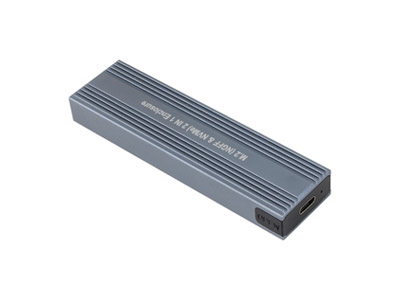 | |
| M.2 NVMe & SATA SSD Enclosure | |
 |  |