
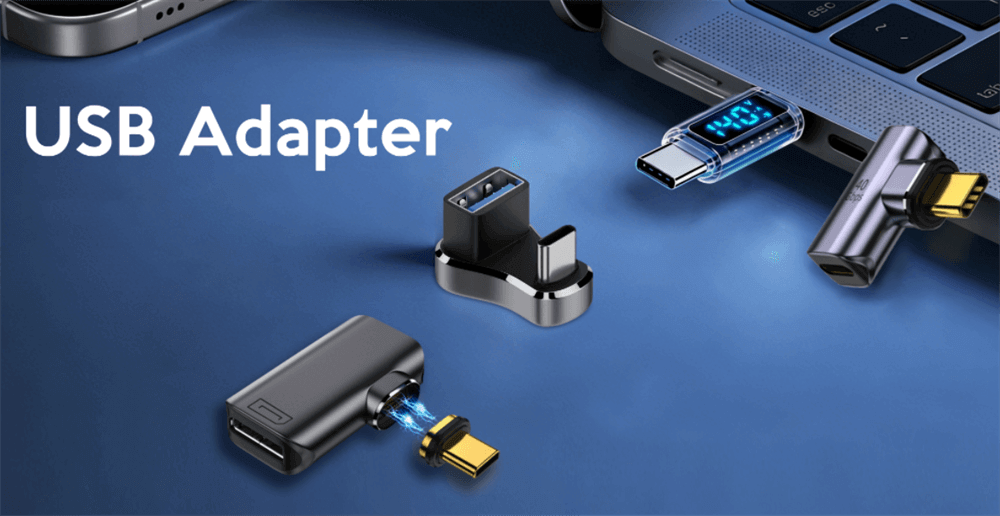
USB-C adapters represent a cornerstone of modern electronics, enabling compatibility between the versatile USB-C port and a wide array of legacy interfaces. As devices increasingly standardize on USB-C for its reversible design and multifunctional capabilities, adapters ensure seamless integration with older hardware, from USB-A peripherals to HDMI displays.
Understanding USB-C Technology
USB-C, formally known as USB Type-C, features a 24-pin reversible connector that supports data, video, audio, and power delivery in a compact form factor measuring 8.34 mm by 2.56 mm. Developed by the USB Implementers Forum and key players like Intel and Apple, it was introduced in 2014 to replace fragmented connectors like USB-A, USB-B, and Mini DisplayPort.
Key advantages include rotational symmetry for easy insertion, higher data rates up to 80 Gbps in USB4 configurations, and power delivery up to 240 W via Extended Power Range (EPR). USB-C supports Alternate Modes for protocols such as Thunderbolt, DisplayPort, HDMI, and PCIe, making it extensible for future needs. Cables are classified as USB 2.0 (basic) or Full-Featured (advanced), with E-Marker chips ensuring safe power negotiation.
Compatibility extends across operating systems, including Android, iOS, Windows, macOS, and Linux, with hardware adoption in motherboards, smartphones, and peripherals since 2014. However, not all USB-C ports are equal—some support only charging, while others handle full data and video capabilities.
Types of USB-C Adapters
USB-C adapters come in various forms to address specific connectivity needs. Below is a detailed breakdown:
1. USB-C to USB-A Adapter
This adapter connects USB-C devices to traditional USB-A peripherals like flash drives, mice, or printers. Variants include male-to-female configurations, supporting speeds up to USB 3.2 Gen 2 (10 Gbps). Ideal for legacy hardware integration on devices like the MacBook Air or Samsung Galaxy series.
2. USB-C to HDMI/DisplayPort/VGA Adapter
These enable video output to external displays, with HDMI supporting 4K at 60Hz and DisplayPort up to 8K at 30Hz. They require ports with DisplayPort Alt Mode or Thunderbolt support. VGA options exist, but are less recommended due to analog conversion reducing quality.
3. USB-C to Ethernet Adapter
Providing wired Gigabit Ethernet (1 Gbps) for stable internet, these are essential for laptops or tablets in Wi-Fi-challenged environments. Built-in chips convert signals, making them suitable for gamers and remote workers.
4. USB-C to 3.5mm Audio Adapter
For devices without headphone jacks, like the iPhone 15 or Google Pixel 8, these include a DAC for high-quality audio conversion. They support wired headphones or speakers, with quality varying by DAC sophistication.
5. USB-C to SD/MicroSD Adapter
These card readers transfer media from cameras or drones, supporting UHS-II speeds up to 312 Mbps for 4K video. Useful for professionals on MacBooks or Galaxy Tabs.
6. USB-C Multiport Adapter (Hub)
Combining multiple ports (e.g., USB-A, HDMI, SD), these bus-powered hubs offer up to 60W passthrough. They are travel-friendly but limited for high-power devices.
Key Features and Specifications
When evaluating adapters, consider:
Speed Ratings: USB 2.0 (480 Mbps) for basic tasks; USB 3.2 Gen 2 (10 Gbps) or USB4 (40 Gbps) for high-speed data.
Power Delivery: Up to 240W with EPR; ensure E-Marker for safety.
Certifications: USB-IF certified to avoid wiring issues or overheating.
Alternate Modes: Support for Thunderbolt (up to 80 Gbps) or video protocols.
How to Choose the Right Adapter
Selection depends on needs: verify device port capabilities (e.g., video support), prioritize trusted brands like Anker or UGreen, and opt for certified products to mitigate risks. For multiport needs, assess power limits; for video, confirm resolution compatibility.
Common Issues and Troubleshooting
Issues include non-recognition (fix: update drivers, test ports), display problems (adjust settings, update graphics), charging failures (use PD-compatible gear), and disconnections (secure cables, avoid extensions). Preventive measures: clean ports, avoid overloading, and use quality cables. Longevity concerns arise from wear, so handle connectors gently.
Tag:USB C,Adapter