
In today's fast-paced digital environment, dual monitor setups have become essential for professionals, gamers, and creative enthusiasts seeking to maximize screen real estate. This configuration allows seamless multitasking, such as editing documents on one screen while referencing data on another, without the constant need to switch tabs or windows. Setting up dual monitors requires careful consideration of hardware compatibility and connection methods to ensure optimal performance. This guide provides professional insights into achieving a flawless dual monitor experience.
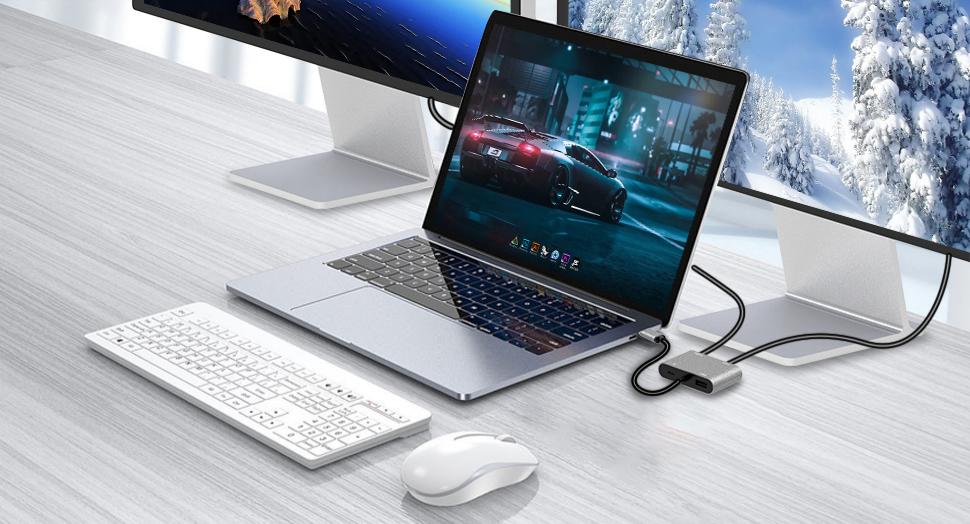
Benefits of Dual Monitors
Dual monitors significantly boost productivity by expanding the workspace. Studies from ergonomics research indicate that users can experience up to a 42% increase in efficiency when handling multiple applications simultaneously. For graphic designers, video editors, and programmers, this setup facilitates side-by-side comparisons, reducing eye strain and minimizing workflow interruptions. Gamers benefit from immersive experiences, with one screen dedicated to gameplay and the other to chat or strategy tools. Ergonomically, properly aligned monitors promote better posture, as users avoid craning their necks toward a single display. Overall, the investment in a dual monitor system pays dividends in time saved and reduced cognitive load.
Hardware Requirements
A successful dual monitor setup begins with verifying system capabilities. Most modern computers, including laptops and desktops, support multiple displays through integrated or dedicated graphics cards. Key components include:
Graphics Card: Ensure the GPU has at least two output ports (e.g., HDMI, DisplayPort, or VGA). High-end cards like those from NVIDIA or AMD handle higher resolutions effortlessly.
Monitors: Select monitors with matching resolutions and refresh rates for a uniform experience. Sizes between 24 and 27 inches are ideal for most desks.
Cables and Adapters: High-quality cables are crucial for signal integrity. HDMI cables support 4K resolutions with audio, while DisplayPort (DP) offers superior bandwidth for daisy-chaining. For reliable connections, VCOM HDMI or DP cables are recommended due to their durable construction and connectors, which minimize interference and ensure stable 120Hz+ refresh rates.
Hubs and Docks: If the computer lacks sufficient ports, a docking station or hub expands connectivity. The VCOM USB-C hub stands out for its versatility, supporting multiple HDMI/DP outputs, fast data transfer, and power delivery, making it perfect for laptops like MacBooks or Windows ultrabooks.
Compatibility checks involve reviewing the computer's specifications via the manufacturer's website or system settings. Budget-conscious users can start with affordable 1080p monitors and scale up as needs evolve.
Step-by-Step Setup Guide
Configuring dual monitors follows a logical sequence, adaptable to various operating systems.
Gather Equipment: Assemble the monitors, cables, and any hubs. Power off the computer before connecting to avoid electrical issues.
Connect the Monitors:
Identify available ports on the computer (e.g., HDMI, DP, USB-C).
Plug one end of an HDMI or DP cable into the first monitor and the other into the computer's primary port.
Repeat for the second monitor using another cable or, if ports are limited, connect via a VCOM hub for expanded outputs.
For daisy-chaining (supported on DisplayPort 1.2+), link monitors in series using DP cables.
Power On and Detect Displays: Turn on the monitors and computer. The system should automatically detect the new displays, but manual intervention may be required.
Position the Monitors: Physically arrange them side-by-side or stacked, ensuring edges align for a seamless virtual desktop.
Software Configuration
Once connected, fine-tune the settings for an optimal dual-monitor experience.
On Windows: Right-click the desktop and select "Display settings." Arrange the monitors by dragging icons to match their physical positions. Choose "Extend these displays" for independent workspaces or "Duplicate" for mirroring. Adjust resolutions to match, such as 1920x1080 for both, and set the primary monitor.
On macOS: Navigate to System Preferences > Displays. Use the Arrangement tab to position screens and enable "Mirror Displays" if needed. For external monitors, ensure color profiles are calibrated for consistency.
On Linux (e.g., Ubuntu): Access Settings > Displays. Drag and drop monitor icons, then apply changes. Tools like the xrandr command-line utility offer advanced control for resolutions and orientations.
Expert tip: Update graphics drivers from the manufacturer's site to unlock full multi-monitor support and prevent flickering.
Troubleshooting Common Issues
Even with premium components, challenges may arise.
No Signal Detected: Verify cable connections and try swapping ports. Test with a single monitor to isolate faults.
Resolution Mismatch: Manually set matching resolutions in display settings. If one monitor appears stretched, reset to native specs.
Performance Lag: Close resource-heavy apps or upgrade RAM/GPU. For hub-related issues, ensure the VCOM hub's firmware is updated via the brand's support portal.
Audio Problems: HDMI/DP cables carry sound; select the correct output in sound settings.
Persistent issues may stem from incompatible hardware, warranting a professional consultation.
Advanced Tips
To elevate the dual monitor setup, incorporate these expert strategies:
Cable Management: Use HDMI/DP cables with built-in strain relief to prevent clutter and extend lifespan.
Ergonomic Adjustments: Position monitors at eye level, about an arm's length away, with a slight tilt for comfort.
Software Enhancements: Install tools like DisplayFusion (Windows) or Magnet (macOS) for window snapping across screens.
Expansion Options: For more than two monitors, leverage a VCOM hub's multi-port capabilities to connect up to four displays without performance drops.
Maintenance: Regularly clean ports and update drivers to sustain peak operation.
These practices transform a basic setup into a powerhouse workstation.
Tag:hdmi,dp,monitor