
In an era of slim, port-minimal devices, the USB-C to HDMI adapter serves as an essential bridge for delivering high-quality video and audio from modern laptops, smartphones, and tablets to external displays such as monitors, TVs, or projectors. This compact accessory transforms a single USB-C port into a reliable video output solution, enabling seamless screen mirroring, extended desktops, or professional presentations without the clutter of bulky docks.
USB-C to HDMI adapters function by leveraging the DisplayPort Alternate Mode (DP Alt Mode) built into compatible USB-C ports. The source device outputs a DisplayPort signal over the USB-C connector, and the adapter performs an active conversion to a standard HDMI signal. HDMI Alternate Mode, once promoted as a direct standard, saw limited adoption and is effectively obsolete; nearly all current adapters rely on DP Alt Mode paired with an integrated conversion chip. This design ensures broad compatibility while supporting resolutions up to 4K at 60 Hz on standard adapters and 8K at 60 Hz or 4K at 240 Hz on premium HDMI 2.1 models.
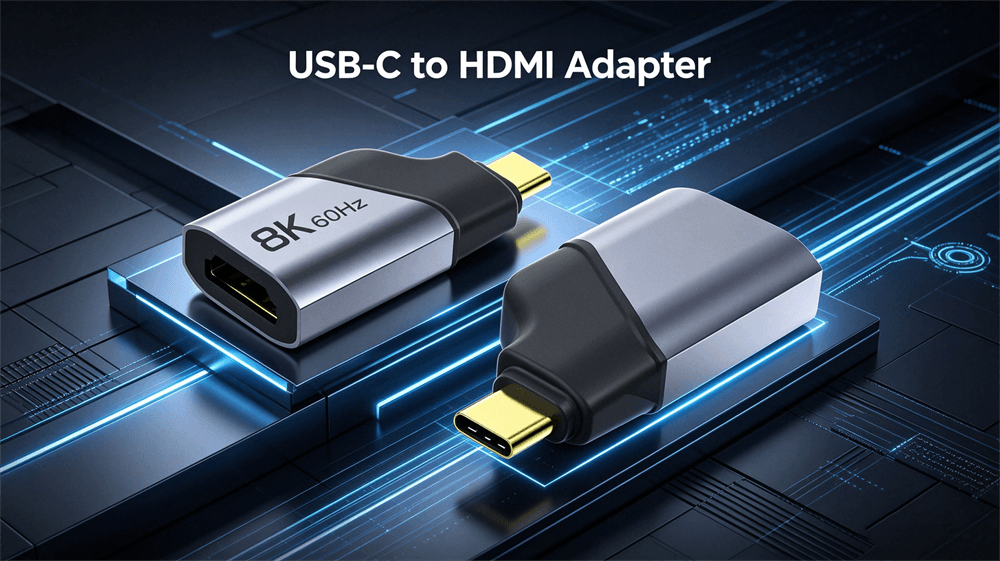
Essential Compatibility Requirements: DisplayPort Alt Mode Explained
Success begins with hardware verification. Not every USB-C port transmits video. The port must explicitly support DP Alt Mode, Thunderbolt 3/4/5, or USB4—features typically listed in device specifications under “video output,” “external display support,” or “DisplayPort over USB-C.” Thunderbolt ports universally include this capability, but standard USB-C data ports on many budget devices do not.
Key compatibility factors include:
Source device support — Confirm DP Alt Mode via manufacturer documentation or by testing with a known working adapter.
Adapter type — Most USB-C to HDMI adapters are active, incorporating a chipset that converts DP to HDMI. Passive adapters (rare in this category) only pass signals and fail without native HDMI output from the source.
Cable and display capabilities — HDMI cables must match the desired resolution and refresh rate; older cables often limit output to 1080p or 4K at 30 Hz.
Power considerations — Video output rarely draws significant extra power, but high-resolution or multi-monitor setups benefit from devices that support Power Delivery (PD) simultaneously.
Devices without DP Alt Mode, such as certain older Android phones or basic USB-C hubs, cannot output video regardless of adapter quality.
Step-by-Step Guide to Connecting a USB-C to HDMI Adapter
The connection process remains straightforward and driver-free on modern operating systems. Follow these steps for reliable results:
Verify and prepare hardware — Ensure the USB-C port supports video output. Have a high-quality HDMI cable rated for the target resolution (e.g., HDMI 2.0 or 2.1).
Connect the adapter — Insert the USB-C end firmly into the source device’s compatible port. A secure click confirms proper seating.
Attach the HDMI cable — Plug one end of the HDMI cable into the adapter’s HDMI port and the other into the display’s HDMI input.
Power on and select input — Turn on the external display and use its remote or controls to switch to the correct HDMI input source.
Configure display settings on the source device —
On Windows: Press Windows key + P to open Project options and select “Duplicate,” “Extend,” or “Second screen only.”
On macOS: Go to System Settings > Displays to arrange screens, set resolution, and enable mirroring.
On ChromeOS or Linux: Access display settings through the system menu.
Test audio and video — Audio transmits automatically over HDMI in most cases. Adjust volume on both the source device and display if needed.
The entire process typically takes under 30 seconds once compatibility is confirmed.
Device-Specific Instructions for Laptops, Smartphones, and Tablets
Laptops (Windows, macOS, ChromeOS): Most modern laptops with Thunderbolt or full-featured USB-C ports support single or dual external displays. Thunderbolt 5-equipped systems (available on high-end 2026 models) unlock native HDMI 2.1 bandwidth for 8K or ultra-high refresh rates when paired with compatible adapters.
Smartphones and Tablets (Android/iOS equivalents): Many flagship Android devices, including Samsung Galaxy series with DeX support, output video natively. Connect the adapter, then tap the on-screen prompt to enable screen mirroring or DeX mode. iPads with USB-C support video output via compatible adapters, though full external display features depend on the iPadOS version. Older or budget phones may lack video output entirely—check specifications for “USB-C DisplayPort” or “Smart View” support.
Multi-monitor or docking setups: For two or more displays, consider a USB-C hub or dock with multiple HDMI ports rather than separate adapters. Ensure the source device supports Multi-Stream Transport (MST) for daisy-chaining.
Troubleshooting Common USB-C to HDMI Issues
Even with compatible hardware, occasional issues arise. Address them systematically:
No signal or black screen: Confirm the correct HDMI input is selected. Power cycle the display and source device. Try a different HDMI cable or port. Verify the USB-C port supports DP Alt Mode.
Resolution or refresh rate limitations: Lower settings to 1080p at 60 Hz initially, then increase gradually. Outdated drivers or firmware can restrict maximum output—update the operating system and graphics drivers.
Intermittent connection or flickering: Ensure all connections are secure. Avoid long, low-quality HDMI cables. Active adapters with signal conditioning perform better over distance.
No audio: Check device sound output settings to route audio to the HDMI display. Restart the connection.
Adapter not recognized after OS update: Reboot the device or test with another adapter. Some 2025–2026 Windows updates temporarily affected USB-C video; patches resolved most cases quickly.
If problems persist across multiple adapters, the USB-C port likely lacks video support.
Choosing the Right USB-C to HDMI Adapter in 2026
Prioritize active adapters from reputable brands(like VCOM) that explicitly list supported resolutions, HDR, and refresh rates. Look for:
HDMI 2.0 or 2.1 certification for future-proofing.
Aluminum housing for better heat dissipation during extended use.
Built-in strain relief and durable connectors.
Compatibility notes for specific ecosystems (Windows, macOS, Android).
Premium options support 8K output on Thunderbolt 5 devices, while budget models suffice for 1080p or 4K office work. Read recent user reviews focusing on the exact device model for real-world performance data.
The USB-C to HDMI adapter remains one of the simplest and most effective tools for expanding display capabilities in today’s portable devices. By confirming DP Alt Mode compatibility, following the straightforward connection sequence, and selecting a quality active adapter matched to current standards, users achieve reliable, high-resolution output every time.
Tag:USB C,HDMI