
MacBook Air is slim, portable, and powerful, but most recent models do not include a built-in HDMI port. For users who need to connect a MacBook Air to a monitor, TV, projector, or meeting-room display, the simplest solution is a USB-C to HDMI adapter or USB-C to HDMI cable.
This connection is widely used for office presentations, home entertainment, online teaching, design work, and dual-screen productivity. The setup is not difficult, but choosing the right adapter and understanding macOS display settings can help avoid common problems such as no signal, black screen, flickering, or no sound.
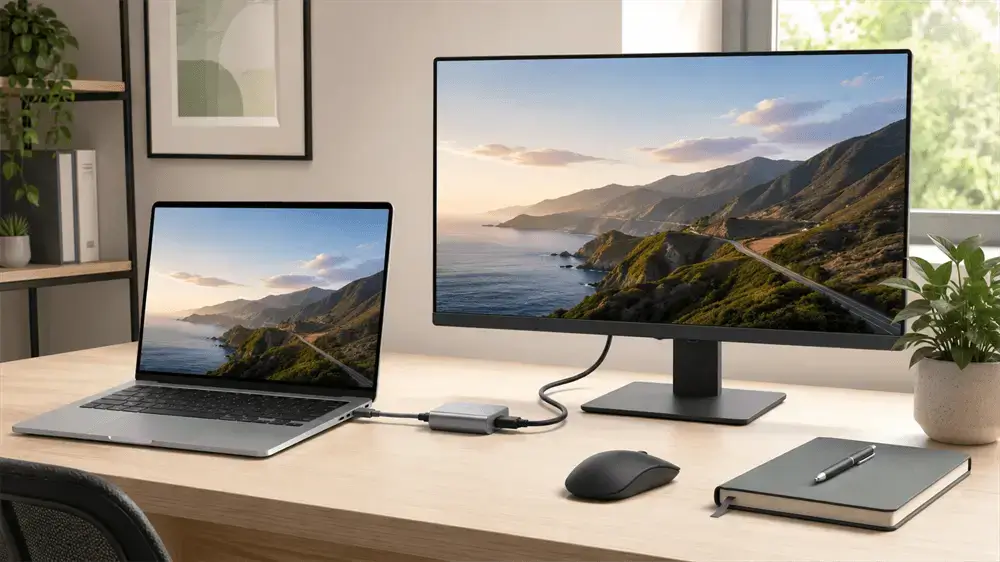
Can MacBook Air Use USB-C to HDMI?
Yes. Apple states that the Thunderbolt ports on MacBook Air support video output for connecting external displays, projectors, and high-resolution TVs. Apple also notes that when using a USB-C or Thunderbolt adapter for a display, the adapter must support DisplayPort Alt Mode, Thunderbolt 3, or Thunderbolt 4.
In simple terms, the USB-C port on MacBook Air can send video, but the adapter must be designed for video output. Some low-cost USB-C accessories only support charging or data transfer, so they cannot connect the MacBook Air to an HDMI display.
What You Need Before Connecting
To use USB-C to HDMI on MacBook Air, prepare these items:
1. A MacBook Air with USB-C or Thunderbolt ports
Most modern MacBook Air models use USB-C-shaped Thunderbolt ports for charging, data transfer, and video output.
2. A USB-C to HDMI adapter or cable
A USB-C to HDMI adapter requires a separate HDMI cable. A USB-C-to-HDMI cable connects directly from the MacBook Air to the HDMI display.
3. A quality HDMI cable
Cable quality matters. A poor HDMI cable can cause unstable signal transmission, screen flickering, a black screen, or reduced resolution.
4. A display with an HDMI input
This may be a monitor, TV, projector, or capture device. Check which HDMI port you are using, especially if the display has HDMI 1, HDMI 2, and HDMI 3 inputs.
How to Connect USB-C to HDMI on MacBook Air
Step 1: Connect the Adapter to MacBook Air
Plug the USB-C end of the adapter or cable into the MacBook Air’s Thunderbolt/USB-C port. Make sure it is fully inserted. A loose connection may lead to no signal or intermittent display.
Step 2: Connect the HDMI Cable
If using an adapter, connect one end of the HDMI cable to the adapter and the other end to the HDMI port of the monitor, TV, or projector. If using a USB-C to HDMI cable, connect the HDMI end directly to the display.
Step 3: Select the Correct HDMI Input
Use the display’s remote control or menu buttons to select the correct HDMI source. This step is often overlooked. If the cable is connected to HDMI 2 but the TV is set to HDMI 1, the screen will show “No Signal.”
Step 4: Wait for macOS to detect the Display
After the display is powered on and connected, macOS should detect it automatically. Apple recommends connecting the display to power first, then connecting it to the MacBook Air.
Step 5: Adjust Display Settings
Open Apple Menu > System Settings > Displays. Here you can adjust resolution, brightness, color profile, refresh rate, and display arrangement. Apple’s MacBook Air guide also explains that users can choose to extend or mirror the Mac desktop.
Mirror Display or Extend Display?
MacBook Air supports two common display modes.
Mirror Display shows the same content on both the MacBook Air and the external screen. It is useful for meetings, classrooms, product demonstrations, and watching videos on a TV.
Extend Display turns the external monitor into an extra workspace. This is better for multitasking, editing documents, comparing spreadsheets, coding, or working with creative software. For most office users, extend mode is the more efficient choice.
How to Get Sound Through HDMI
HDMI can transmit both video and audio. If the picture appears but sound still comes from the MacBook Air speakers, go to System Settings > Sound > Output, then select the HDMI display.
If the HDMI display does not appear as an audio option, unplug the adapter and reconnect it. Also, check the TV or monitor volume, the HDMI cable condition, and whether the display supports audio output.
Common USB-C to HDMI Problems on MacBook Air
No Signal
This may be caused by the wrong HDMI input, a loose cable, an incompatible adapter, or a USB-C accessory that does not support video output. Try another HDMI port, test another HDMI cable, and confirm the adapter supports video transmission.
Black Screen
A black screen may occur when the display is detected but cannot show the selected resolution or refresh rate. Open Displays settings and choose a lower resolution or standard 60Hz refresh rate.
Screen Flickering
Flickering often comes from poor signal stability. Use a shorter, higher-quality HDMI cable, avoid unnecessary extension hubs, and make sure the adapter supports the display’s resolution and refresh rate. VCOM’s USB-C to HDMI adapter guide also recommends checking each part of the connection chain when signal issues appear.
4K Does Not Run at 60Hz
Not all adapters support 4K at 60Hz. Some older or entry-level adapters only support 4K at 30Hz. Apple’s USB-C Digital AV Multiport Adapter, for example, supports different resolutions and refresh rates depending on the adapter model and Mac model.
How to Choose the Right USB-C to HDMI Adapter
When selecting a USB-C to HDMI adapter for MacBook Air, check these points:
Choose an adapter like VCOM that clearly supports video output, preferably DisplayPort Alt Mode or Thunderbolt compatibility. For modern monitors, 4K 60Hz support is recommended. If the adapter is for travel or presentations, a compact USB-C to HDMI cable may be more convenient. For office desks, a multiport USB-C hub with HDMI, USB-A, card reader, Ethernet, and Power Delivery may be more practical.
A reliable adapter should have stable connectors, good shielding, strong heat control, and clear resolution specifications. USB-C adapters are now essential because they allow modern USB-C devices to connect with HDMI displays, USB-A peripherals, Ethernet, SD cards, and other legacy interfaces.
Tag:USB C,HDMI