
A USB-C hub can support dual monitors, but not every USB-C hub — and not every laptop USB-C port — is capable of doing it. The correct answer depends on the host device, USB-C port specification, hub chipset, operating system, graphics processor, cable quality, and monitor resolution.
This is why two users may buy similar-looking dual-HDMI USB-C hubs and get completely different results. One Windows laptop may perfectly extend across two external displays, while a MacBook may only mirror the same image on both screens. The connector looks the same, but the technology behind it can be very different.
For business users, designers, engineers, traders, teachers, and remote workers, a reliable dual-monitor setup can dramatically improve productivity.
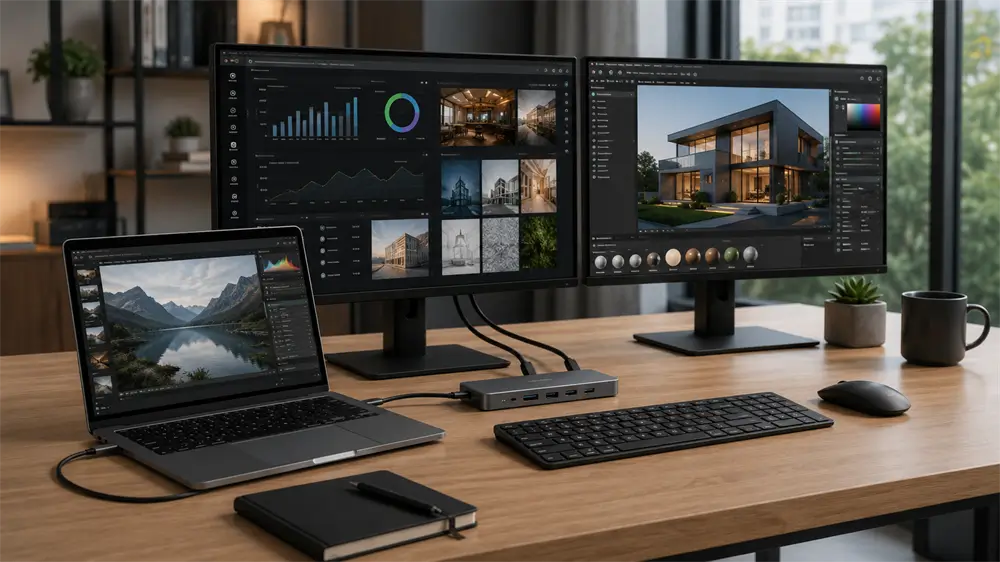
How Does a USB-C Hub Output Video?
USB-C is a connector standard, not a guarantee of video output. Some USB-C ports only support charging and data transfer, while others support video through DisplayPort Alt Mode, USB4, or Thunderbolt.
DisplayPort Alt Mode allows video signals to travel through the USB-C connector, making it possible for a USB-C hub to output HDMI, DisplayPort, VGA, or other display signals. VESA states that DisplayPort Alt Mode over USB-C is widely used in laptops, tablets, adapters, multifunction docks, and USB-C displays.
USB4 improves this concept further by supporting multiple simultaneous data and display protocols over a high-speed USB-C link. The USB-IF explains that USB4 can dynamically share bandwidth between data and display applications, which is especially valuable for advanced hubs and docking stations.
In simple terms, the USB-C port must be capable of sending video before any USB-C hub can display video. If the laptop’s USB-C port does not support video output, even a high-quality dual-monitor hub will not solve the problem.
What Is Required for Dual Monitor Support?
A successful dual-monitor USB-C setup requires four conditions.
First, the laptop must support video output through USB-C. Look for specifications such as DisplayPort Alt Mode, USB4, Thunderbolt 3, or Thunderbolt 4. A charging-only USB-C port will not drive external displays.
Second, the USB-C hub must be designed for dual video output. A hub with two HDMI ports is not automatically a true dual-extended-display hub. Product specifications should clearly state whether it supports extended mode, mirror mode, MST, DisplayLink, or Thunderbolt/USB4 dual display.
Third, the operating system and GPU must support the target display mode. Windows laptops generally work well with MST-based dual-display hubs when the hardware supports it. macOS is more restrictive with MST and often mirrors the same image instead of extending two independent displays.
Fourth, there must be enough bandwidth. Dual 1080p monitors are easier to support than dual 4K monitors. Dual 4K at 60Hz requires more bandwidth and usually needs a stronger hub architecture, such as USB4, Thunderbolt, or a well-designed DP 1.4 MST solution.
MST, DisplayLink, USB4, and Thunderbolt Explained
MST, or Multi-Stream Transport, allows one DisplayPort signal to carry multiple independent video streams. Many Windows dual-HDMI USB-C hubs use MST to extend two monitors from one USB-C port. It is convenient, driver-free in many cases, and suitable for office work, programming, finance, and general productivity.
DisplayLink works differently. It uses a dedicated chip and software driver to create additional display outputs. Synaptics describes DisplayLink Manager for macOS as software that enables DisplayLink docks, adapters, and monitors, with support for multiple displays up to 4K, depending on the device and setup. This makes DisplayLink useful for MacBooks that have native external display limitations.
USB4 and Thunderbolt docks offer higher bandwidth and stronger professional performance. They are better suited for users who need dual 4K monitors, high-speed external SSDs, Gigabit Ethernet, and laptop charging through one cable. For demanding workstations, this type of hub or docking station is usually the most stable choice.
Can a MacBook Use a USB-C Hub for Dual Monitors?
MacBook compatibility is the most common source of confusion. Apple states that the number of external displays depends on Mac model, resolution, and refresh rate. A hub or dock does not automatically increase the maximum number of displays the Mac supports.
For example, Apple confirms that MacBook Air and MacBook Pro models with the M3 chip can connect two external displays simultaneously when the lid is closed. Newer MacBook Air models with M4 and M5 chips support up to two external displays simultaneously in addition to the built-in display, depending on resolution and refresh rate.
For older M1 and M2 MacBook Air models, native dual external monitor support is limited. In such cases, a DisplayLink-based dock may be a better choice for office users who need two extended displays. However, for color-critical design, gaming, or high-refresh-rate workflows, native Thunderbolt or USB4 display output remains preferable.
Can a Windows Laptop Use a USB-C Hub for Dual Monitors?
For Windows laptops, dual-monitor support through a USB-C hub is usually more straightforward. If the laptop supports DP Alt Mode, USB4, or Thunderbolt, and the hub supports MST, two external displays can often be extended independently.
This makes VCOM USB-C hubs and docking stations practical for office desks, hybrid workstations, meeting rooms, classrooms, trading setups, and engineering work. A VCOM dual-display hub with HDMI or HDMI + DP output, PD charging, USB-A ports, USB-C data, Ethernet, and card reader functions can reduce cable clutter and simplify daily connections.
For best results, users should check the supported resolution before purchase. Some hubs support dual 1080p, some support one 4K display plus one 1080p display, and higher-end models may support dual 4K depending on the host laptop and cable configuration.
Why Do Some USB-C Hubs Only Mirror Displays?
A dual-port hub may only mirror displays for several reasons. The laptop may output only one video stream. The hub may use SST rather than MST. macOS may not support MST extended mode in the same way Windows does. The monitor resolution may exceed the available bandwidth. Low-quality HDMI or USB-C cables may also cause flickering, black screens, or reduced refresh rates.
Before buying, check for wording such as “dual extended display,” “MST supported,” “Windows extended mode,” “Mac mirror mode only,” or “DisplayLink required.” These details are more important than simply counting the number of HDMI ports.
FAQ
Can any USB-C hub support dual monitors?
No. The laptop USB-C port and the hub must both support video output and dual-display operation.
Does dual monitor support require Thunderbolt?
Not always. Many Windows laptops can use MST through DP Alt Mode. Thunderbolt or USB4 is recommended for higher-resolution professional setups.
Can a USB-C hub support two 4K monitors?
Yes, but only with enough bandwidth and the right hub. Dual 4K60 usually requires USB4, Thunderbolt, or a high-performance MST dock.
Why does a dual-HDMI hub show the same image on both screens?
The hub, laptop, or operating system may only support mirror mode. This is common with some macOS and non-MST configurations.
Tag:USB-C Hub