Active HDMI fiber optic cables, also known as HDMI AOC cables, are widely used in home theaters, conference rooms, digital signage, classrooms, control centers, and long-distance projection systems. Compared with ordinary copper HDMI cables, an active optical HDMI cable converts the electrical HDMI signal into an optical signal for transmission through fiber, then converts it back at the display end. This structure allows longer transmission distance, lighter cable construction, better resistance to electromagnetic interference, and stable support for high-bandwidth video formats such as 4K and 8K.
However, active HDMI fiber optic cables are not the same as passive HDMI cables. They contain signal conversion chips, require correct direction, and depend on stable communication between the source device and the display. When something goes wrong, the symptoms may include “No Signal,” intermittent black screen, screen flickering, wrong resolution, color distortion, or failure to enable 4K/120Hz or 8K output. The good news is that most display problems can be solved through a structured troubleshooting process.
Why Active HDMI Fiber Optic Cables Have Display Problems
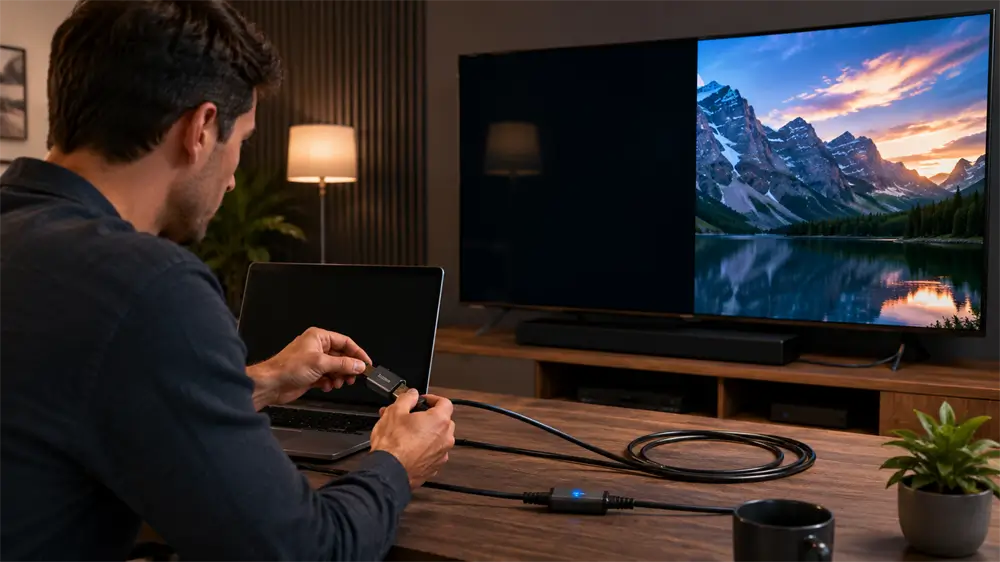
A traditional passive HDMI cable is usually bidirectional. Either end can be connected to the source or the display. An active HDMI fiber optic cable is different. It is designed for one-way signal transmission. The connector marked Source must be connected to the signal output device, such as a laptop, desktop PC, game console, Blu-ray player, set-top box, or AV receiver output. The connector marked Display must be connected to the TV, monitor, projector, LED screen, or capture/display device.
If the cable is installed backward, the screen usually shows no signal. In most cases, this does not damage the cable or device, but the connection will not work. This is one of the most common causes of AOC HDMI installation failure, especially when the cable has already been routed through a wall, ceiling, conduit, or equipment cabinet.
Another key reason is bandwidth mismatch. A cable, source device, display, adapter, splitter, or AV receiver must all support the target resolution and refresh rate. For example, 4K at 60Hz, 4K at 120Hz, and 8K at 60Hz require different levels of bandwidth and HDMI feature support. If one component in the chain is limited, the display may fall back to a lower resolution or fail to show an image.
Common Symptoms and What They Mean
1. No Signal or Display Not Detected
This is often caused by reversed cable direction, loose HDMI connectors, the wrong HDMI input selected on the display, or a source device that has not activated video output. For laptops, external display mode may need to be enabled manually. For desktops, the HDMI cable should be connected to the graphics card output rather than the motherboard port when a discrete GPU is used.
2. Intermittent Black Screen or Flickering
Flickering and random blackouts usually point to unstable signal transmission. Causes include excessive bending, connector stress, insufficient cable power, weak HDMI handshake, poor adapter quality, or an output format that exceeds the capability of the cable or display chain.
3. Resolution Cannot Reach 4K or 8K
If the display only shows 1080p or cannot select the expected refresh rate, check the HDMI specifications of every device in the chain. A 4K/120Hz gaming setup, for example, requires a compatible GPU or console, an HDMI 2.1-capable display port, and a 48Gbps-class cable. Some TVs also require “enhanced HDMI,” “deep color,” or “high bandwidth mode” to be enabled in settings.
4. Washed-Out Color, Noise, or Image Distortion
Color problems may result from incorrect color depth, chroma subsampling settings, HDR compatibility issues, or weak EDID communication. Reducing output from 12-bit to 10-bit, changing RGB to YCbCr, or testing SDR mode can help identify whether the issue is bandwidth or compatibility-related.
Step-by-Step Troubleshooting Guide
Step 1: Confirm Cable Direction
Check both HDMI connectors. Connect the Source end to the output device and the Display end to the screen. This step should always be checked first before changing software settings or replacing equipment.
Step 2: Check Physical Connections
Make sure both HDMI connectors are fully inserted. Some active HDMI connectors are slightly larger than standard HDMI plugs, so tight spaces behind TVs or wall plates may prevent a secure fit. Avoid forcing the connector at an angle. If the cable has an LED indicator, confirm whether it lights up during operation.
Step 3: Test a Simple Connection Chain
Remove unnecessary devices first. Connect the source directly to the display with the active HDMI fiber optic cable. Bypass HDMI splitters, switches, capture cards, extenders, wall plates, adapters, and AV receivers during diagnosis. If the cable works directly, the issue is likely caused by one of the intermediate devices.
Step 4: Lower Resolution and Refresh Rate
Set the source output to 1080p/60Hz first. If the image appears, gradually increase to 4K/60Hz, 4K/120Hz, or 8K, depending on the system. This method helps determine whether the problem is basic connectivity or high-bandwidth performance.
Step 5: Update Drivers and Firmware
For PCs, update the graphics driver. For TVs, projectors, AV receivers, and game consoles, check for firmware updates. HDMI handshake issues may be improved by firmware updates, especially for newer 4K/120Hz, HDR, VRR, and eARC environments.
Step 6: Check EDID and HDCP Handshake
EDID tells the source what resolution, refresh rate, audio format, and color mode the display supports. HDCP handles protected content authentication. If either handshake fails, the source may output no signal or an incorrect format. Restarting both devices, reconnecting the HDMI cable, changing HDMI ports, or using an EDID manager in professional AV systems can resolve handshake problems.
Step 7: Inspect Cable Routing and Bend Radius
Fiber conductors are strong in normal use but can be damaged by sharp bends, crushing, stapling, twisting, or excessive pulling force. During installation, avoid tight corners and keep a smooth bend radius. Do not run the cable under heavy furniture or across areas where it may be stepped on.
Step 8: Check Power Requirements
Some active HDMI cables draw power from the HDMI port, while others include an auxiliary USB power connector. If the display still shows no signal after direction and connection checks, connect the auxiliary power cable if available. This is especially important for long cable runs and high-bandwidth output.
How to Choose a Reliable Active HDMI Fiber Optic Cable
When selecting an active HDMI fiber optic cable, match the cable to the real application rather than only the advertised resolution. For 4K/60Hz displays, an 18Gbps-class cable may be sufficient. For 4K/120Hz gaming, 8K displays, HDR, VRR, or future-ready home theater systems, a certified Ultra High Speed HDMI cable with 48Gbps capability is the safer choice.
For professional projects, select a cable with clear Source and Display markings, strong connector housing, stable chipset design, and reliable quality control. The actual installation length should leave a reasonable margin; using a cable near its maximum rated distance is not ideal for mission-critical installations. VCOM active HDMI fiber optic cable solutions are suitable for long-distance AV transmission scenarios where stable 4K/8K video, lightweight routing, and anti-interference performance are required.
Final Checklist
If an active HDMI fiber optic cable is not working, follow this order:
Confirm Source and Display direction.
Check the HDMI connectors and input selection.
Test source and display directly.
Lower resolution to 1080p, then increase gradually.
Update GPU drivers and device firmware.
Check EDID, HDCP, HDR, and refresh rate settings.
Avoid sharp bends, pressure, and connector stress.
Add auxiliary power if the cable supports it.
Replace adapters, splitters, or wall plates if needed.
Choose a certified cable that matches the required bandwidth.
FAQ
Can an active HDMI fiber optic cable be connected backward?
No. Active HDMI fiber optic cables are directional. The Source end must connect to the output device, and the Display end must connect to the screen.
Why does the cable work at 1080p but not at 4K or 8K?
The connection chain may not support the required bandwidth. Check the source, display, cable rating, HDMI port version, and any adapters or receivers in between.
Can bending damage an HDMI fiber optic cable?
Yes. Sharp bends or heavy pressure can damage the internal fiber and cause unstable display output.
Is an active HDMI fiber optic cable better than a copper HDMI?
For short distances, copper HDMI is often sufficient. For long-distance 4K/8K transmission, active fiber HDMI offers lighter weight, lower signal loss, and stronger resistance to electromagnetic interference.
Tag:HDMI Cable