Connecting an HDMI monitor to a DP cable is a common requirement in office workstations, home entertainment systems, classrooms, meeting rooms, and commercial display projects. Many desktop computers and graphics cards provide DisplayPort output, while monitors, TVs, and projectors often use HDMI input. The two ports are both digital video interfaces, but they are not physically or electrically identical.
The practical answer is simple: a standard DisplayPort cable cannot plug directly into an HDMI monitor. To complete the connection, a DisplayPort-to-HDMI cable or a DisplayPort-to-HDMI adapter is required. The most important point is signal direction. The correct connection is normally a DisplayPort source to an HDMI display, not the other way around.
Understanding the Connection Direction
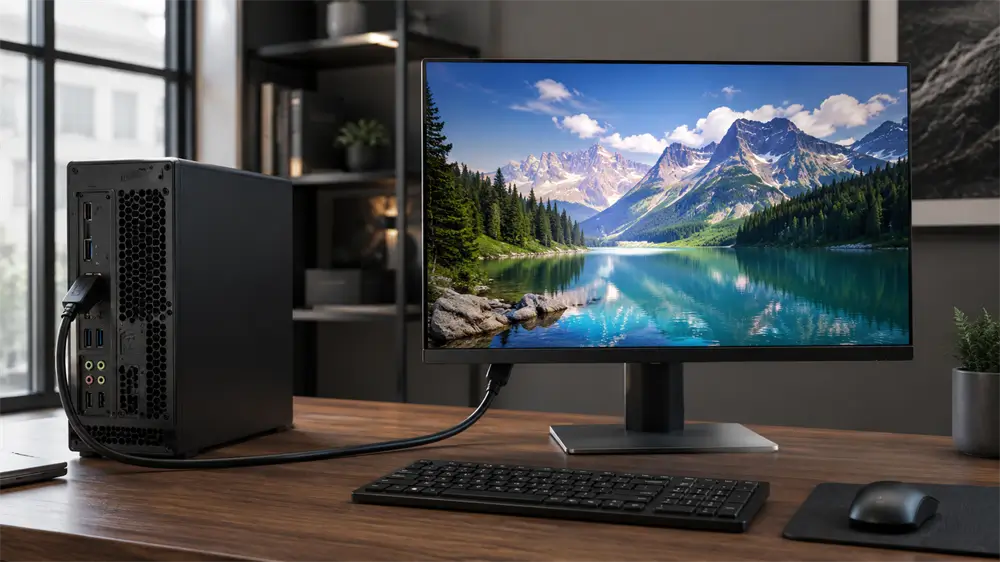
Before purchasing a cable, the source and display devices must be clearly identified. The source device is the equipment that outputs the video signal, such as a desktop PC, graphics card, docking station, or laptop with a DisplayPort output. The display device is the equipment that receives the signal, such as an HDMI monitor, TV, or projector.
For this topic, the proper signal chain is:
PC/laptop/graphics card with DisplayPort output → DP-to-HDMI cable or adapter → HDMI monitor
This direction matters because most DP-to-HDMI cables are not bidirectional. A cable designed for a DisplayPort source to an HDMI display will not normally work from an HDMI source to a DisplayPort monitor. If the source device only has HDMI output and the monitor only has DisplayPort input, a dedicated active HDMI-to-DisplayPort converter is needed instead.
Why a Normal DP Cable Cannot Connect to HDMI
DisplayPort and HDMI use different connector designs. A DisplayPort plug cannot fit into an HDMI port, and an HDMI plug cannot fit into a DisplayPort port. Beyond the shape difference, the signal method also differs. DisplayPort uses packet-based video transmission, while HDMI follows a different AV transmission structure.
That is why a conversion cable or adapter is required. It bridges the physical connector difference and converts the signal into a format the HDMI monitor can understand. For stable display performance, especially at 4K resolution, choosing the correct conversion method is more important than simply matching the connector shape.
Method 1: Use a DisplayPort-to-HDMI Cable
A DisplayPort-to-HDMI cable is the cleanest choice when the installation distance is fixed. One end connects to the DisplayPort output of the computer, and the other end connects directly to the HDMI input of the monitor. This avoids the need for an extra HDMI cable and keeps the desk or meeting room setup tidy.
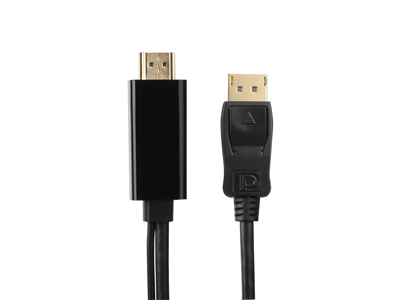
For users who need a reliable direct connection, the VCOM CG609-1.8 Active DisplayPort to HDMI Cable is a suitable option. It is designed for connecting a DisplayPort-enabled source device to an HDMI display. The cable supports up to 4K@60Hz, uses an integrated active conversion chip, and features gold-plated connectors for stable conductivity and corrosion resistance. It is suitable for office display setups, UHD home entertainment, meeting room presentations, and digital signage systems.
This type of active cable is particularly useful when the setup requires stable 4K output or when the device compatibility is uncertain.
Method 2: Use a DP Male to HDMI Female Adapter
A DP-to-HDMI adapter is a better option when an HDMI cable is already available. The adapter plugs into the DisplayPort output of the computer, and a separate HDMI cable connects the adapter to the monitor. This gives more flexibility in cable length and replacement.
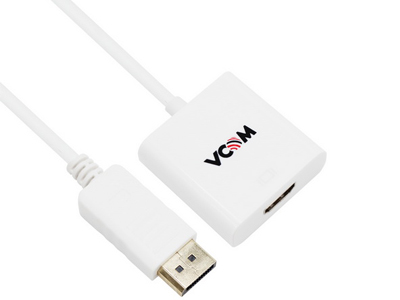
The VCOM CG601 DP Male to HDMI A Female Cable is a practical adapter-style solution. It uses a DisplayPort male connector and an HDMI female connector, supports 21.6Gbps, 4K@60Hz, and 1080P@60Hz, and includes gold-plated connectors. It is suitable for users who already own a high-quality HDMI cable and need to convert a DisplayPort output into an HDMI connection.
For mobile technicians, office users, and meeting room setups, this adapter format is convenient because it can be paired with HDMI cables of different lengths.
Active vs Passive DP-to-HDMI: Which Should Be Chosen?
DisplayPort-to-HDMI products are generally divided into active and passive types. A passive adapter depends on the DisplayPort source device supporting DP++ dual-mode output. If the device does not support the required mode, the display may show no signal.
An active DP-to-HDMI cable contains a conversion chip that processes the DisplayPort signal and outputs HDMI. This makes active conversion more reliable for modern systems, multi-monitor setups, UHD monitors, and professional environments where stability matters.
For basic 1080P office use, a passive adapter may be enough if the computer supports DP++. For 4K@60Hz, meeting rooms, commercial displays, or systems where compatibility must be predictable, an active cable such as the VCOM CG609-1.8 is the safer choice.
Step-by-Step: How to Connect an HDMI Monitor to a DP Output
First, check the video output port on the computer, graphics card, or docking station. It should be a standard DisplayPort output. Then check the monitor and confirm that it has an HDMI input.
Next, select the right product. Choose a DP-to-HDMI cable for a direct one-cable connection, or choose a DP-to-HDMI female adapter when an HDMI cable is already available. Connect the DisplayPort end to the source device and connect the HDMI end to the monitor. If using an adapter, connect the HDMI cable between the adapter and the monitor.
Turn on the monitor and select the correct HDMI input from the display menu. On Windows, open Display Settings and choose duplicate mode or extend mode. On macOS systems with compatible adapters or docks, open Display settings and adjust arrangement and resolution.
For best results, manually set the monitor resolution and refresh rate according to the capability of the cable, adapter, source device, and display.
Resolution and Refresh Rate Considerations
Not every DP-to-HDMI product supports the same performance level. For general office use, 1080P@60Hz is usually sufficient. For 4K monitors, UHD projectors, or high-detail workspaces, 4K@60Hz support should be selected.
The final output quality depends on the full connection chain: the DisplayPort version of the source device, the adapter or cable specification, the HDMI cable if one is used, and the monitor’s HDMI input capability. If any part of the chain only supports a lower standard, the system may fall back to 1080P or 4K@30Hz.
Common Problems and Solutions
If the monitor shows “No Signal,” check the direction first. The product must be connected from a DisplayPort source to an HDMI display. Then confirm that the monitor is set to the correct HDMI input.
If the screen flickers or turns black, try lowering the refresh rate temporarily, reconnecting the cable, or using another HDMI port. Poor-quality cables and overly long cable runs can also create unstable signals.
If 4K@60Hz is not available, confirm that the source device, adapter, cable, and monitor all support 4K@60Hz. Graphics driver updates may also be required.
If there is no audio, choose the HDMI monitor as the system audio output device. DisplayPort-to-HDMI connections can carry audio, but the operating system may still default to built-in speakers.
Tag:DP Cable


Related Products
 | |
| Active DisplayPort to HDMI Cable | |
 |  |
 | |
| DP to HDMI Cable | |
| |