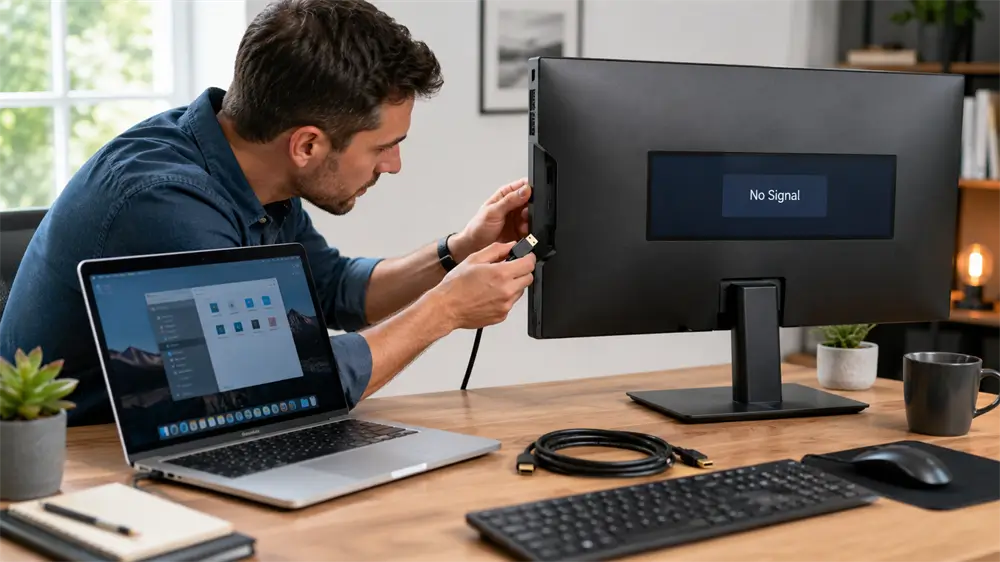
Few connection problems are more frustrating than plugging in an HDMI cable and seeing “No Signal” on a TV or monitor. In most cases, however, the problem is not a serious hardware failure. It is usually caused by a loose connector, wrong input source, cable mismatch, display setting conflict, or an incomplete HDMI handshake between the source device and the screen. The best approach is to troubleshoot in order, starting with the simplest physical checks before moving into software and compatibility settings.
What Does “HDMI No Signal” Mean?
“HDMI no signal” means the display is powered on but is not receiving a valid video signal from the connected device. The source may be a laptop, desktop PC, game console, set-top box, Blu-ray player, docking station, or USB-C to HDMI adapter. HDMI transmits digital video and audio, so if the connection chain fails at any point, the screen may show no picture, a black screen, flicker, or an unsupported-resolution warning.
Step 1: Check the Physical HDMI Connection
Start with the most common cause: the cable is not fully seated. Remove the HDMI cable from both devices and reconnect it firmly. Some TV and monitor ports are slightly recessed, so the connector may look inserted while still not making full contact. Also check for bent connector shells, dust in the port, or excessive cable tension behind a wall-mounted TV.
For narrow spaces, wall-mounted displays, and conference-room screens, a flexible or angled HDMI cable can reduce stress on the port. VCOM’s HDMI cable lineup includes ultra-thin and left-angle HDMI 2.1 options designed for space-constrained AV installations, including wall-mounted displays and home theater setups.
Step 2: Select the Correct HDMI Input
Many TVs and monitors have several HDMI ports. If the cable is connected to HDMI 2 but the TV is set to HDMI 1, the screen will show “No Signal.” Use the remote control or display menu to choose the exact HDMI input that matches the port being used.
This is especially important when an AV receiver, soundbar, HDMI switch, or capture card sits between the source and display. Sony’s support guidance also recommends confirming that the selected HDMI input on the receiver or amplifier matches the connected input, and testing a direct connection to the TV when troubleshooting.
Step 3: Restart Devices to Reset the HDMI Handshake
HDMI devices exchange display information when they connect. This process is often called the HDMI handshake. If it fails, the screen may stay blank even when the cable and ports are functional.
Turn off the TV or monitor and the source device. Unplug both from power for about one minute. Reconnect the HDMI cable, power on the display first, select the correct input, then power on the source device. This sequence often helps the display detect the signal again.
For laptops and PCs, disconnect unnecessary hubs, docks, capture cards, and adapters during the first test. Microsoft recommends starting external monitor troubleshooting with basic hardware checks and using Windows + P to confirm the intended projection mode, such as Duplicate or Extend.
Step 4: Test the Cable, Port, and Source Device
If the first three steps do not work, isolate the faulty part of the chain.
Try another HDMI cable. Try another HDMI port on the TV or monitor. Try the same HDMI cable with another device, such as a game console or media player. Also test the source device on another display if available. This process quickly identifies whether the issue is caused by the cable, the screen, the source device, or an intermediate adapter.
Step 5: Fix Resolution, Refresh Rate, and Display Settings
A display may show no signal if the source device outputs a resolution or refresh rate the screen cannot accept. This is common when a laptop has been used with a high-refresh gaming monitor, then connected to an older TV or projector.
On Windows, open Display Settings and reduce the resolution or refresh rate to a widely supported format such as 1920×1080 at 60Hz, then increase settings after the display becomes stable. On macOS, Apple advises checking whether the cable or adapter supports the external display’s resolution and refresh rate; unsupported combinations can cause a blank screen or lower-than-expected display mode.
For USB-C to HDMI setups, confirm that the USB-C port supports video output. Not every USB-C port supports DisplayPort Alt Mode or Thunderbolt video output. VCOM USB-C to HDMI adapters are suitable for laptops, projectors, TVs, and desk setups where the host USB-C port supports video output.
Step 6: Update Drivers, Firmware, and System Software
If HDMI works physically but the monitor is not detected, the problem may be software-related. Update the graphics driver on Windows, especially after a major system update. For desktops with discrete graphics cards, install the latest driver from the GPU manufacturer or the PC brand’s support page.
On Mac, Apple notes that software can affect display detection, image quality, and available resolution or refresh rate options, and recommends installing macOS updates and checking firmware updates for third-party displays where available. TV firmware should also be kept current, particularly for smart TVs, AV receivers, and gaming displays.
Step 7: When to Replace the HDMI Cable or Adapter
Replace the HDMI cable if it only works at low resolution, flickers at 4K, drops audio, becomes hot, or fails when slightly moved. For everyday office and home theater use, a reliable HDMI 2.0 cable may be enough for 4K60. For PS5, Xbox Series X, high-refresh gaming monitors, 8K TVs, and advanced AV receivers, a certified Ultra High Speed HDMI cable is the better choice.
VCOM offers HDMI 2.0, HDMI 2.1, HDMI 2.2, active optical HDMI, DP to HDMI, and USB-C to HDMI solutions for different connection needs. For long-distance installations, active optical HDMI can reduce signal loss. For wall-mounted TVs, thin or angled HDMI cables help protect the connector. For laptops with limited ports, a USB-C to HDMI adapter or hub may be the cleanest solution.
FAQ
Can a bad HDMI cable cause no signal?
Yes. A weak or damaged cable may work at 1080p but fail at 4K, HDR, or high refresh rates because the bandwidth demand is higher.
Should HDMI CEC be turned off?
If devices keep switching inputs, powering on unexpectedly, or failing to reconnect, disabling HDMI CEC temporarily can help isolate the issue.
Why does HDMI work on one TV but not another?
The second display may support different resolutions, refresh rates, HDCP versions, or HDMI input settings. Lower the output resolution and test again.
What is the fastest way to troubleshoot HDMI no signal?
Reseat the cable, select the correct HDMI input, restart both devices, test another cable, and try another HDMI port. These steps solve most HDMI no-signal cases without professional repair.
Tag:HDMI