
A high-speed broadband plan does not automatically guarantee high-speed wired internet. In many homes and offices, users pay for 500 Mbps, 1 Gbps, or faster service, yet their computers still show poor download speeds, high gaming latency, unstable video calls, or a network link stuck at 100 Mbps. In many cases, the bottleneck is not the broadband line itself but the Ethernet cable, RJ45 connector, router port, switch port, or installation environment.
Ethernet cable speed optimization begins with one principle: test the physical link before changing advanced software settings. A wired network depends on the whole chain, including the cable category, conductor quality, termination accuracy, port capability, and cable route. If one part of the chain is weak, the negotiated speed may drop from 1000 Mbps to 100 Mbps, even when the broadband service is much faster. Ethernet stuck at 100 Mbps is often due to hardware issues, such as a faulty cable, connector, LAN socket, or router/switch port, and recommends unplugging and replugging the cable or replacing it as a quick test.
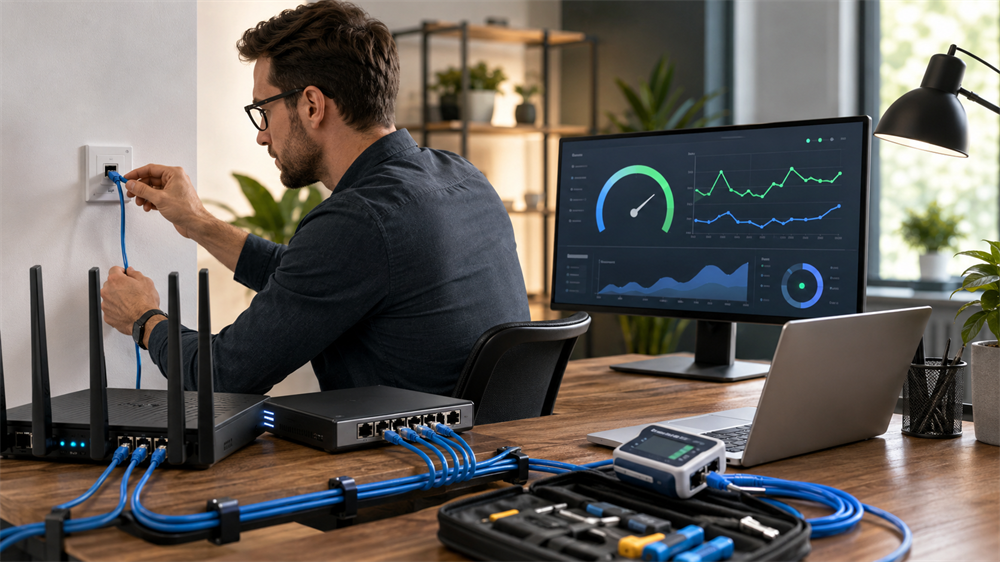
Quick Answer: Why Is Ethernet Speed Slow?
Ethernet speed is usually slow because the link is negotiating at a lower speed, the cable category is too low, the RJ45 termination is incorrect, the cable is damaged, the run is too long, or the cable is affected by electromagnetic interference. For gigabit networks, every component should support at least Gigabit Ethernet, and the Ethernet cable should normally be Cat5e or higher. For new installations, Cat6 or Cat6a is the safer long-term choice.
Step 1: Identify Where the Problem Is
Before replacing equipment, isolate the fault. First, compare wired and wireless performance. If Wi-Fi is slow but Ethernet is fast, the issue is likely wireless coverage, router placement, or channel congestion. If Ethernet is also slow, continue checking the wired chain.
Second, test more than one device. If only one laptop or desktop is slow, inspect that device’s network adapter, driver, Ethernet port, or USB-to-Ethernet adapter. If all wired devices are slow, the router, switch, wall jack, or main cable run may be responsible.
Third, check whether the slowdown happens all day or only during peak hours. Occasional slow speed may be related to ISP congestion or server-side limits. Constant slow speed usually points to a local cable, port, or configuration problem.
Step 2: Check the Negotiated Ethernet Link Speed
A speed test website measures internet throughput, but the more important first check is the negotiated link speed between the computer and the router or switch. On Windows, this can be found through Ethernet status or network adapter settings. If the link shows 100 Mbps instead of 1.0 Gbps, the broadband speed will be capped at the 100 Mbps level no matter how fast the ISP plan is.
For gigabit operation, the computer port, router/switch port, and Ethernet cable must all support gigabit speed. A damaged pair inside the cable, poor crimping, oxidized RJ45 contacts, or a low-quality wall socket can force the link to fall back to Fast Ethernet. Replacing the cable with a known-good Cat6 cable is often the fastest verification step.
Step 3: Choose the Right Ethernet Cable Category
Ethernet cable category directly affects speed, bandwidth, interference resistance, and upgrade potential. VCOM’s Ethernet cable guide explains that cable categories define parameters such as frequency, supported speed, shielding, and recommended transmission distance; a higher category usually provides higher bandwidth and better crosstalk resistance, but it is not always the best value for every scenario.
Cat5e supports Gigabit Ethernet up to 1 Gbps over a maximum channel distance of 100 meters, making it usable for basic home and small office networks. Cat6 increases frequency to 250 MHz, supports 1 Gbps at 100 meters, and can support 10 Gbps over shorter distances, typically up to 55 meters under proper installation conditions. For new home renovations, office wiring, gaming setups, 4K streaming, IP cameras, and access points, Cat6 offers a strong balance of cost and performance. For longer-term 10 Gbps planning, Cat6a is more suitable because it is designed for 10 Gbps over 100 meters.
Cat8 is not automatically better for home use. It is designed for short-distance 25 Gbps or 40 Gbps links, mainly in data centers. VCOM recommends Cat6 or Cat6a pure-copper Ethernet cables for most new home and office projects, while shielded, higher-category cables are more appropriate for industrial, data center, and high-interference environments.
Step 4: Verify RJ45 Wiring and Termination
Ethernet cables use T568A or T568B wiring standards. Both can work correctly, but the same standard should be used consistently at both ends for a straight-through cable. Brady’s TIA-568 overview explains that T568A and T568B mainly differ in how they assign wire pairs to RJ45 connectors, with T568B placing the orange pair on pins one and two while T568A uses the green pair.
For common T568B termination, the wire order from pin 1 to pin 8 is: white-orange, orange, white-green, blue, white-blue, green, white-brown, brown. Incorrect wire order, incomplete insertion into the RJ45 plug, excessive untwisting, or a weak crimp can cause packet loss, unstable speed, or total link failure. For home users without crimping experience, finished patch cords from a reliable brand are usually more dependable than DIY cables.
Step 5: Control Cable Length and Routing
Standard twisted-pair Ethernet cabling is designed around a 100-meter channel. The 100 m channel includes a 90 m permanent link plus patch cables at both ends, and signal attenuation increases with length. Channel limits are based on 100 m, while permanent links are based on 90 m in structured cabling testing.
For stable performance, avoid pushing cable length to the limit. Wall wiring should normally stay within 90 meters, with the remaining distance reserved for patch cords. Also avoid running Ethernet cable parallel to power cables for long distances. If Ethernet and power lines must cross, a 90-degree crossing is preferred to reduce interference.
Step 6: Reduce Interference and Physical Damage
Ethernet cables are often installed near power strips, lighting circuits, motors, elevators, air conditioners, or industrial machines. In these environments, unshielded cables may suffer from electromagnetic interference. VCOM’s Ethernet guide notes that F/UTP shielding improves resistance to electromagnetic interference in equipment rooms, office ceilings, and areas near power cables or machinery, while S/FTP provides stronger protection for data centers, industrial automation, medical systems, and high-density cabling.
Physical condition also matters. Replace cables with cracked jackets, loose clips, bent connectors, oxidation, or repeated sharp bends. A cable that looks normal outside may still have internal conductor damage, especially near the connector or at frequently bent points.
Step 7: Use Quality Ethernet Cables and Accessories
For reliable gigabit performance, cable construction matters. VCOM’s D1601 Cat6 UTP cable is listed as a Category 6 U/UTP cable with 23AWG, 4-pair construction in a 305 m reel, and its specification page lists solid bare copper conductors, high-density polyethylene insulation, and PVC jacket material. These details are important for structured cabling projects where conductor quality, mechanical stability, and consistent performance affect the final network result.
For short device connections, VCOM Cat6 patch cords are suitable for connecting computers, routers, switches, smart TVs, game consoles, printers, and network storage. For new office wiring or long-term upgrades, Cat6a or shielded solutions should be considered based on bandwidth, installation environment, and future expansion needs.
How to Test Ethernet Cable Speed Correctly
A practical testing process should include three steps. First, connect the computer directly to the router with a known-good Ethernet cable and run a speed test. Second, check the Ethernet link speed in the operating system; for a gigabit network, it should show 1.0 Gbps. Third, use a cable tester to verify continuity and wire order. For professional installations, a certification tester is recommended to confirm the cable meets its category performance.
If the network still shows 100 Mbps after replacing the cable, test a different router/switch port, inspect the wall jack, update the network adapter driver, and keep the adapter speed setting on Auto Negotiation unless professional troubleshooting requires otherwise.
FAQ
Why does Ethernet show 100 Mbps instead of 1 Gbps?
The most common causes are a faulty Ethernet cable, incorrect RJ45 termination, a damaged port, a poor wall socket, or a device that only supports 100 Mbps.
Is Cat6 enough for gigabit internet?
Yes. CAT6 supports 1 Gbps at 100 meters and can support 10 Gbps over shorter distances under proper installation conditions.
Should T568A or T568B be used?
Both work if used consistently. T568B is common in many installations, but the key rule is to use the same standard on both ends of a straight-through cable.
Does a shorter Ethernet cable improve speed?
A shorter cable does not increase speed beyond the port limit, but it can reduce signal loss and avoid problems caused by poor long-distance installation.
Which Ethernet cable does VCOM recommend for new installations?
For most home and office projects, VCOM recommends Cat6 or Cat6a pure copper Ethernet cables. Shielded higher-category cables are better for industrial, data center, or high-interference environments.
Tag:Ethernet Cable