
USB4 represents a paradigm shift in universal serial bus technology, mandated to use USB-C connectors and offering backward compatibility with USB 3.2, USB 2.0, and even Thunderbolt 3 devices. Key specifications include two-lane operation for up to 80 Gbps in advanced setups, dynamic bandwidth sharing for simultaneous data, display, and power delivery, and support for protocols like DisplayPort and PCIe tunneling. This versatility positions USB4 as ideal for professionals handling large datasets or multi-monitor configurations. Yet, not all devices claiming USB-C ports deliver full USB4 capabilities, necessitating precise verification to avoid performance bottlenecks.
Determining support ensures optimal use of peripherals, from external SSDs to docking stations.
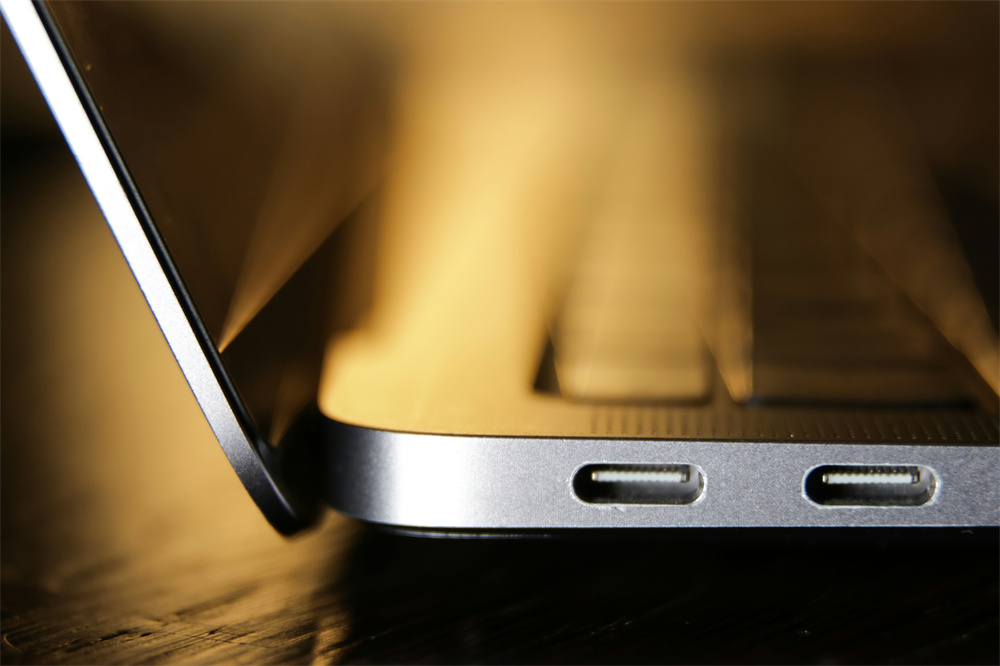
Key Differences Between USB4 and USB 3.2
To appreciate USB4's edge, consider its distinctions from USB 3.2. USB 3.2 encompasses variants like Gen 2 (10 Gbps) and Gen 2x2 (20 Gbps), supporting multiple connector types, including USB-A and USB-B. In contrast, USB4 restricts to USB-C, mandates at least 20 Gbps (with 40 Gbps common), and introduces tunneling for efficient multi-protocol handling. USB4's half-duplex to full-duplex transition minimizes speed drops during multitasking, unlike USB 3.2's shared bandwidth model.
Aspect | USB4 | USB 3.2 Gen 2x2 | USB 3.2 Gen 2 | USB 3.2 Gen 1 |
Max Data Speed | 40 Gbps (up to 80 Gbps in V2) | 20 Gbps | 10 Gbps | 5 Gbps |
Connector Compatibility | USB-C only | USB-C, USB-A, etc. | USB-C, USB-A, etc. | USB-C, USB-A, etc. |
Protocol Tunneling | Yes (DP, PCIe, Thunderbolt) | No | No | No |
Power Delivery Max | 100W | 100W | 100W | 100W (with PD) |
Backward Compatibility | Full (USB 3.2/2.0/Thunderbolt 3) | Partial (USB 3.1/2.0) | Partial (USB 2.0) | Partial (USB 2.0) |
Typical Use Cases | High-res video, eGPUs | Fast storage transfers | General peripherals | Basic charging/data |
Verifying USB4 Support on PCs
Verification methods differ by operating system.
Windows PCs: Access Settings via Win + I, then Bluetooth & devices > USB. The presence of "USB4 Hubs and Devices" confirms support, displaying capabilities and attached peripherals. Alternatively, in Device Manager (Win + X > Device Manager), expand System devices and look for "USB4 Host Router." Processor checks are crucial: Intel 11th-gen or AMD equivalents often enable USB4.
macOS Devices: Open About This Mac > System Report > USB. Entries labeled "USB4" indicate support, common in M1 Macs onward. Apple's site provides model-specific details.
Linux Systems: Run lsusb -t in the terminal to view bus hierarchies and speeds; look for 40Gbps indicators. For deeper checks, inspect /sys/bus/thunderbolt/devices if Thunderbolt-integrated.
Verifying USB4 Support on Phones
Smartphone USB4 adoption lags behind PCs, with most devices capping at USB 3.2.
Android Phones: Install apps like "USB Device Info" or "AIDA64" from Google Play to query port specs. Check About Phone > Status for USB details, or visit manufacturer sites.
iOS Devices: iPhones with USB-C (iPhone 15 series) support USB 3 (up to 10 Gbps), not USB4. Review specs at apple.com/iphone; no native app checks exist, so rely on official documentation.
Common Challenges and Troubleshooting
Mislabeling plagues USB standards—ports may advertise "USB4" but operate at lower speeds without certified cables. Test with 40 Gbps-rated cables and tools for real-world speeds. BIOS disabling can hide support; enter BIOS (F2/Del on boot) to enable Thunderbolt/USB4 options. For interoperability, ensure firmware updates align with USB-IF guidelines.
Advanced Considerations for Enthusiasts
Enthusiasts should note USB4's optional Thunderbolt compatibility, requiring specific chipsets like Intel's Tiger Lake. Future-proof by selecting devices with USB4 Gen 3x2 for 80 Gbps potential. Power measurements and D3 state checks in Device Manager ensure optimal efficiency.
Click to check the VCOM USB4 cable series
Tag:USB4