
Modern storage needs have changed dramatically. Large 4K videos, AI-generated files, game libraries, system images, and business documents move between devices every day. A hard drive enclosure is no longer just a shell for an old disk. It has become a practical external storage solution for backup, data transfer, device expansion, and secure mobile work.
A hard drive enclosure is a protective case that turns an internal HDD or SSD into an external drive. Connecting through USB-C, USB-A, Thunderbolt, or other interfaces, it allows a laptop, desktop, tablet, or compatible device to read the drive like a portable storage device. For users who have upgraded a laptop SSD or replaced an old SATA drive, an enclosure is one of the most cost-effective ways to reuse existing hardware.
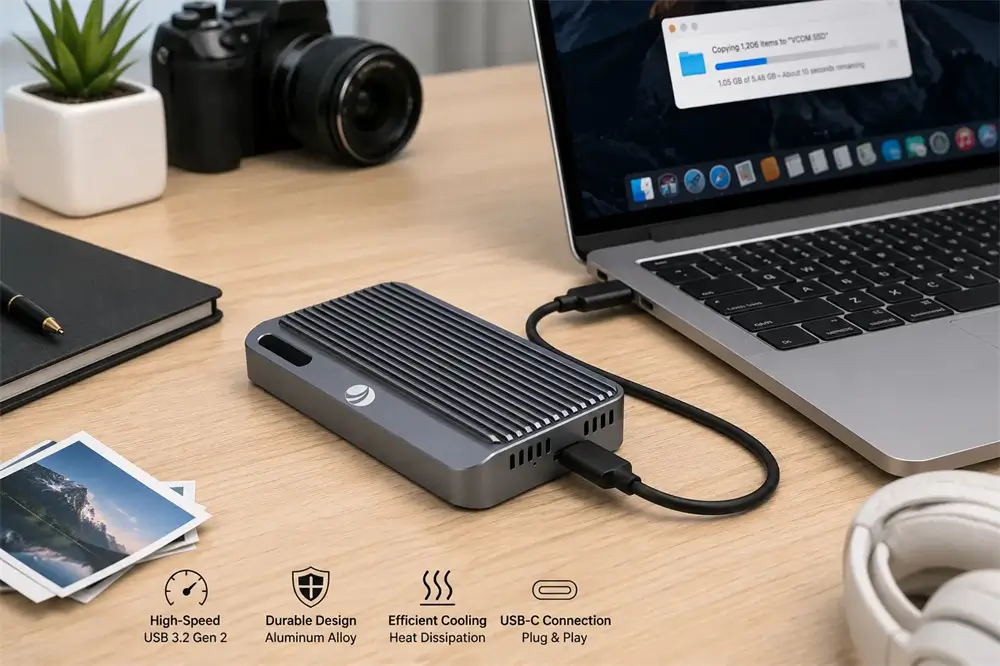
What Is a Hard Drive Enclosure?
A hard drive enclosure contains a bridge controller, a connector interface, a protective shell, and usually a USB cable. The bridge controller converts the native storage protocol, such as SATA or NVMe, into a format that the host computer can recognize through USB.
This is why compatibility matters. A 2.5-inch SATA SSD needs a SATA enclosure. An M.2 SATA SSD requires an enclosure that supports M.2 SATA. An M.2 NVMe SSD requires an NVMe enclosure. SATA and NVMe may look similar in some M.2 formats, but they use different interface technologies; Kingston notes that the main difference between SATA and NVMe M.2 SSDs is the interface technology and performance level.
Why Hard Drive Enclosures Are Still Useful
The first benefit is storage expansion. Many ultrabooks and tablets ship with limited internal storage, and upgrading internal drives is not always convenient. A hard drive enclosure allows users to create an external SSD for large files, software installers, photos, videos, and backups.
The second benefit is data migration. When replacing a computer, an enclosure makes it easier to copy files from an old drive to a new device. It is also useful for system cloning, IT maintenance, and emergency data access.
The third benefit is sustainability. Instead of leaving an old SSD unused, a quality enclosure can extend its service life. For home users, students, photographers, office workers, and technicians, this is a practical way to reduce waste while gaining extra storage.
HDD Enclosure vs SSD Enclosure
Traditional HDD enclosures are often used with 2.5-inch or 3.5-inch mechanical drives. They are suitable for high-capacity backups, media archives, and low-cost storage. However, HDDs contain moving parts, so they are more sensitive to impact and vibration.
SSD enclosures are more suitable for high-speed, portable, and frequent-access scenarios. SSDs have no moving parts, operate silently, and usually offer better shock resistance.
For users who need fast file transfer, an SSD enclosure is usually the better choice. For users who need affordable, large-capacity cold storage, an HDD enclosure still makes sense.
SATA vs M.2 NVMe: Which One Should You Choose?
A 2.5-inch SATA enclosure is ideal when reusing older laptop SSDs or HDDs. It is affordable, widely compatible, and usually enough for office documents, photos, and basic backups.
An M.2 SATA enclosure is compact but limited by the SATA interface. It is useful when users already own an M.2 SATA drive, but it does not deliver NVMe-level speed.
An M.2 NVMe enclosure is the preferred choice for high-performance workflows. It is suitable for large video files, game storage, virtual machines, and professional backup tasks. When paired with a USB 3.2 Gen 2 interface, many NVMe enclosures can support up to 10Gbps-class transfer bandwidth; ASUS, for example, lists an M.2 PCIe NVMe enclosure using USB-C 3.2 Gen 2x1 with up to 10Gbps transfer speed.
Speed and USB Standards
Speed depends on three factors: the SSD, the enclosure controller, and the host port. A fast NVMe SSD will not reach full performance if the enclosure or computer port is limited to an older USB standard.
USB naming can be confusing. USB 3.2 Gen 2 commonly refers to 10Gbps-class performance, while USB4 products can provide much higher bandwidth depending on implementation. USB-IF’s current USB4 Version 2.0 specification page confirms that the USB4 specification continues to evolve, with the v2.0 document published in 2026.
For most users, a 10Gbps USB-C SSD enclosure is a strong balance of speed, compatibility, and price. Power users working with large 4K/8K footage may consider faster USB4 or Thunderbolt-class solutions.
Heat Dissipation Matters
Heat is one of the most overlooked details in SSD enclosures. NVMe SSDs can become hot during sustained file transfers, especially when copying hundreds of gigabytes. Excessive heat may cause speed throttling, unstable transfers, or shorter component life.
A good enclosure should use a metal shell, thermal pads, and a design that helps move heat away from the SSD. VCOM’s SSD protection material highlights aluminum design as a benefit for heat dissipation, helping keep the enclosure cool during intensive transfers and supporting longer device lifespan.
Data Security and Encrypted Enclosures
For business users, educators, creators, and anyone carrying private files, security is just as important as speed. Software encryption tools such as BitLocker or VeraCrypt can protect data, but hardware-level or biometric access can make daily use more convenient.
This is where VCOM’s fingerprint-encrypted SSD enclosure series becomes especially relevant. The VCOM CU855SN-F fingerprint-encrypted SSD enclosure is designed for sensitive data protection, using biometric access to restrict unauthorized users. It also supports USB 3.2 Gen 2 10Gbps, M.2 NVMe and SATA SSD compatibility, real-time operating status display, and aluminum heat dissipation.
For professionals handling client files, financial data, teaching materials, creative assets, or private backups, an encrypted SSD enclosure provides a stronger layer of protection than a standard external drive.
How to Set Up a New Drive
After installing an SSD into an enclosure, the drive may need to be initialized and formatted before use. Microsoft explains that Disk Management in Windows can initialize new drives, create and format volumes, change drive letters, and manage disk partitions.
For Windows-only use, NTFS is common. For Mac-only use, APFS is often suitable. For cross-platform sharing between Windows and macOS, exFAT is usually more convenient.
Why Choose VCOM Hard Drive Enclosure Products?
VCOM’s hard drive enclosure series is suitable for users who want reliable external storage without complicated setup. For everyday backup and file transfer, VCOM SSD enclosures offer a practical way to turn internal drives into portable storage. For users who need higher security, the VCOM fingerprint-encrypted SSD enclosure is a strong option for protecting sensitive data while maintaining high-speed transfer.
VCOM’s enclosure solutions are especially suitable for content creators, office users, IT technicians, teachers, students, gamers, and mobile workers who need fast, stable, and secure storage.
FAQ
Can any SSD work with any enclosure?
No. The enclosure must match the SSD interface and form factor. SATA, M.2 SATA, and M.2 NVMe are not always interchangeable.
Is an NVMe enclosure faster than a SATA enclosure?
Usually yes, but final speed also depends on the USB interface, controller, cable, and computer port.
Does an SSD enclosure need cooling?
For NVMe SSDs, good heat dissipation is strongly recommended, especially during large file transfers.
Is an encrypted SSD enclosure worth it?
Yes, if the drive stores business files, private documents, client data, or travel backups.
Tag:Hard Drive Enclosure,SSD Enclosure