VGA is one of the most familiar video interfaces in offices, classrooms, factories, control rooms, and legacy computer systems. Even though HDMI, DisplayPort, and USB-C video have become mainstream, many projectors, desktop monitors, industrial PCs, DVR systems, and older laptops still rely on the blue 15-pin VGA connector. The advantage of VGA is simple compatibility. The disadvantage is equally clear: VGA carries an analog signal, so image quality depends heavily on cable quality, connector contact, grounding, interference control, and correct display settings.
When a VGA screen becomes blurry, shows snow-like noise, flickers, shifts color, or fails to fill the monitor properly, the problem is usually not difficult to locate. Dell’s support documentation notes that VGA is a legacy analog connection and is more susceptible to interference than digital connections such as HDMI and DisplayPort. This guide explains how to diagnose VGA display problems step by step and when it is better to upgrade the connection.
Common VGA Display Problems
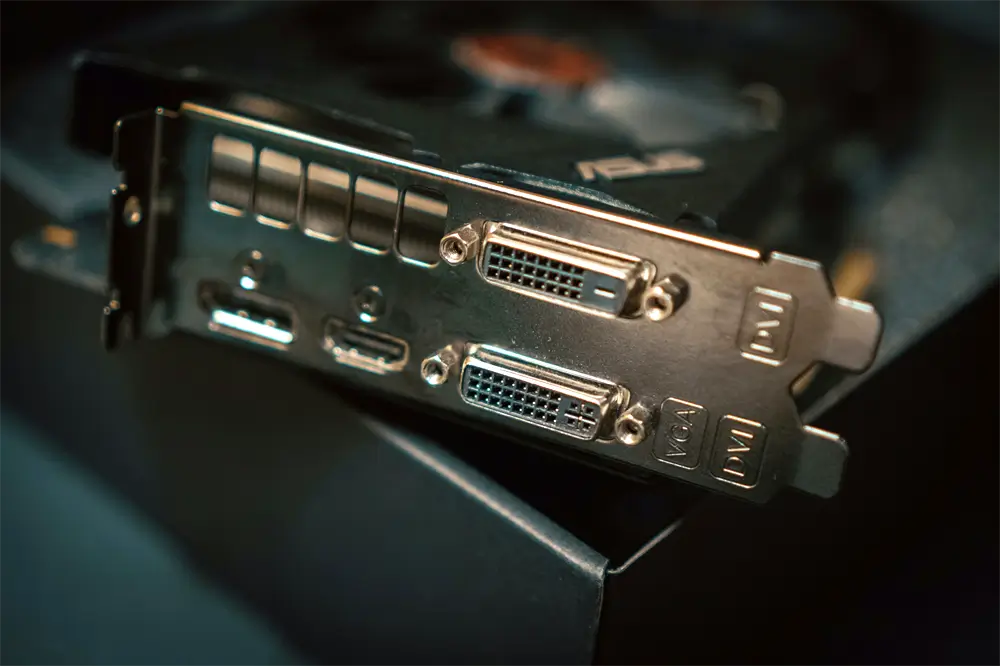
The most common VGA symptoms include a blurry image, ghosting around text, snow dots, random noise, red/green/blue color loss, unstable flickering, wavy lines, and a screen that appears shifted, stretched, or partially cut off. These issues are more common on VGA than on digital interfaces because VGA transmits separate analog red, green, blue, horizontal sync, and vertical sync signals through small pins and copper conductors.
A slight weakness in any part of the signal chain can affect the final image. A loose connector may cause intermittent flicker. A bent pin may remove one color channel. A low-quality cable may pick up electromagnetic interference. A wrong refresh rate may make the display unstable. A monitor set to the wrong input timing may show a soft or off-center image.
Step 1: Keep the VGA Cable Away from Interference
The first troubleshooting step is cable routing. VGA cables should not be bundled tightly with AC power cords, power strips, motors, speakers, phone chargers, fluorescent lighting, or other high-current devices. Running VGA and power cables in parallel for a long distance increases the risk of visible interference, such as waves, jitter, snow, or unstable brightness.
For a cleaner signal, route the VGA cable separately from power lines. When cables must cross, crossing at a right angle is better than running them side by side. In meeting rooms or classrooms, avoid placing long VGA cables near extension cords under tables. In industrial environments, shielded VGA cables are strongly recommended because electromagnetic noise from equipment can easily affect analog transmission.
Step 2: Tighten the VGA Connector Screws
Unlike HDMI or USB-C, VGA connectors are designed with two side screws for a reason. These screws help maintain firm contact between the cable plug and the device port. If the connector is loose, the monitor may flicker, lose color, or display random noise when the cable is touched.
Power off the display and computer before checking the connection. Insert the VGA plug straight into the port, then tighten both screws evenly by hand. Do not overtighten with tools, as this can damage the port. If the monitor image changes when the cable is moved, the connector, port, or internal cable conductors may already be worn.
Step 3: Inspect the 15-Pin VGA Interface
A standard VGA connector uses 15 pins arranged in three rows. These pins carry image color and synchronization signals. If one pin is bent, recessed, oxidized, or broken, the symptom can be very specific. For example, a missing red, green, or blue channel can cause obvious color distortion. A damaged sync pin can cause rolling, flickering, or no display.
Check both ends of the VGA cable under good lighting. If a pin is slightly bent, it may be carefully straightened with a small tool, but excessive force can break it. If pins are oxidized, clean the connector gently with a dry, soft cloth or electronics-safe cleaning method. If pins are missing or badly damaged, replacing the cable is safer than repairing it.
Step 4: Set the Correct Resolution and Refresh Rate
Incorrect display settings are a common cause of soft text, incomplete screen coverage, black borders, or flickering. The computer should be set to the monitor’s native resolution whenever possible. For many older VGA monitors, common settings include 1024×768, 1280×1024, 1366×768, 1600×900, or 1920×1080, depending on the panel.
Refresh rate also matters. Microsoft explains that refresh rate is how many times per second the display updates, and Windows allows users to change it under Advanced display settings. For VGA troubleshooting, 60Hz is usually the safest first choice. Some older monitors also support 75Hz at lower resolutions, but unsupported combinations can produce flicker, black screen, or image instability.
On Windows, open Settings > System > Display > Advanced display. Select the correct monitor, check the current resolution, and choose a supported refresh rate. If the issue started after a driver update, reconnect the monitor and reinstall or update the graphics driver.
Step 5: Use the Monitor’s Auto Adjust Function
Many VGA monitors include an Auto Adjust or Auto Calibration function. This feature is specifically useful for analog VGA input because the monitor must sample the analog signal and align clock, phase, position, and size parameters. ASUS notes that Auto Adjust is valid only when the input signal is analog VGA. Samsung also recommends using Auto Adjustment when connecting through VGA if the image is distorted, ghosted, or flickering.
To use it, open the monitor’s on-screen display menu and look for Auto, Auto Adjust, Auto Setup, or Image Setup. Wait several seconds while the monitor recalibrates. For best results, set the computer to the monitor’s native resolution before running Auto Adjust.
Step 6: Replace Poor-Quality or Aging VGA Cables
If the display still shows ghosting, snow, or color instability after settings and connector checks, the VGA cable may be the weak point. Low-cost VGA cables often have poor shielding, thin conductors, and weak connector strain relief. Over time, repeated bending can also break internal wires near the connector.
A good VGA cable should have reliable shielding, molded strain relief, secure connector screws, and stable pin alignment. For longer runs, choose a thicker, better-shielded cable and avoid unnecessary adapters. VCOM VGA cables and video converter products are suitable options for users who need stable legacy display connections in classrooms, offices, and equipment rooms.
When to Upgrade from VGA
VGA can still work well for basic office and projector use, but it is not the best choice for modern high-resolution displays. If the computer and monitor support HDMI or DisplayPort, upgrading to a digital connection is the cleanest solution. Digital interfaces are less affected by analog noise and generally provide sharper text, better color consistency, and more reliable plug-and-play detection.
If the source device only has VGA but the display only has HDMI, a proper VGA-to-HDMI converter is required. A simple passive cable is usually not enough because VGA is analog while HDMI is digital. VCOM’s VGA to HDMI Cable with Power and Audio CG493A, for example, uses VGA male plus USB plus audio input and outputs HDMI Type-A, supporting up to 1080P@60Hz according to VCOM’s product specification. This type of powered converter is useful for connecting older PCs to modern TVs, monitors, and projectors.
FAQ
Why is my VGA screen blurry?
The most common causes are incorrect resolution, poor cable quality, weak analog signal, or monitor sampling misalignment. Set the monitor to its native resolution and run Auto Adjust.
Why does my VGA screen show snow or noise?
Snow noise usually indicates interference, poor shielding, loose connectors, or a damaged cable. Keep the VGA cable away from power cables and replace low-quality cables.
Why is the VGA display missing one color?
A missing red, green, or blue channel is often caused by a bent or broken VGA pin, poor connector contact, or internal cable damage.
Why does VGA flicker?
Flicker may come from loose connectors, electromagnetic interference, incorrect refresh rate, outdated graphics drivers, or monitor hardware failure.
Is VGA still worth using?
VGA remains useful for legacy systems, but HDMI and DisplayPort are better for modern displays. If image quality is important, upgrading to a digital interface is recommended.
Tag:VGA