With the rapid development of computer hardware, display interfaces have continued to evolve. Modern graphics cards and laptops increasingly adopt DisplayPort (DP) as a primary video output interface, while HDMI remains the dominant connection standard for monitors, televisions, projectors, and home entertainment devices.
This difference often creates a common connection problem: a computer or graphics card only provides a DisplayPort output, but the available monitor or projector only supports HDMI input. In this situation, a DisplayPort to HDMI cable provides a simple and practical way to connect these devices without replacing existing displays.
Although both DisplayPort and HDMI are digital interfaces capable of transmitting high-definition video and audio signals, they use different transmission protocols and are designed for different application scenarios. DisplayPort is widely used in PCs, graphics cards, and professional display equipment, while HDMI is commonly found in consumer electronics such as TVs, projectors, and gaming consoles.
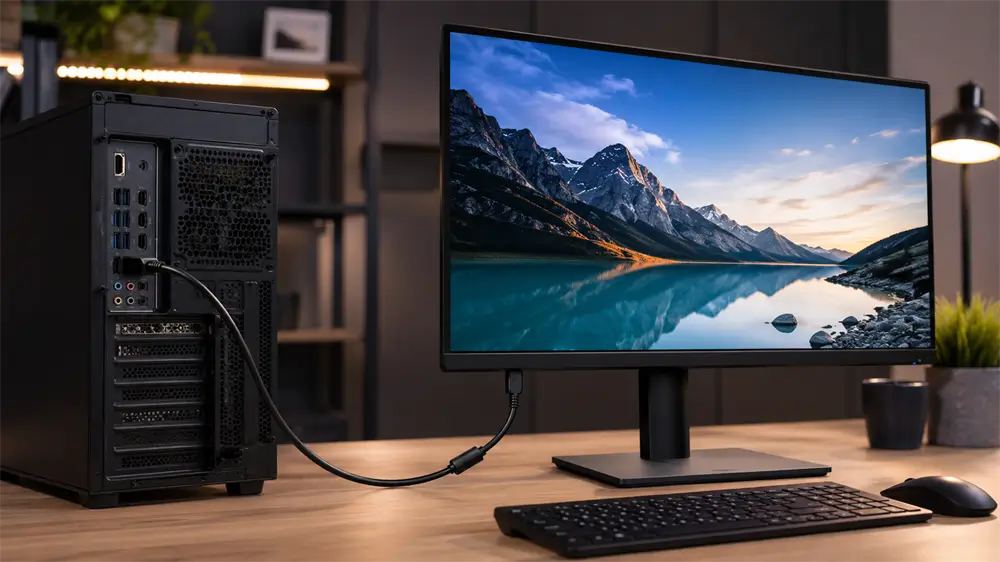
What Is a DisplayPort to HDMI Cable?
A DisplayPort to HDMI cable is a conversion cable designed to connect a device with a DisplayPort output to a display device with an HDMI input.
The typical connection method is:
Computer / Graphics Card DisplayPort Output → DP to HDMI Cable → HDMI Monitor / TV / Projector
Common application scenarios include connecting:
A desktop graphics card to an HDMI monitor
A laptop with DisplayPort output to a TV
A workstation to a conference room projector
A gaming PC to an HDMI display
The main purpose of the cable is to convert the DisplayPort signal into a format that an HDMI display can recognize. DP to HDMI cables are mainly used when the DisplayPort device acts as the signal source and the HDMI device acts as the display terminal.
How Does DP to HDMI Conversion Work?
Many users assume that DP to HDMI conversion is simply changing one connector into another. However, this is not always the case.
DisplayPort and HDMI follow different communication standards. DisplayPort was developed for high-performance computer displays, while HDMI was designed primarily for consumer audio and video equipment. Because of these differences, the signal conversion process depends on the capabilities of the source device and the design of the cable or adapter.
Some DisplayPort outputs support direct conversion through passive cables, while other connection scenarios require an active adapter with a built-in conversion chip.
For example, when connecting a modern graphics card with a DisplayPort output to an older HDMI monitor, an active conversion solution may provide better compatibility and more stable performance.
Therefore, users should not only check the connector type but also confirm whether the cable supports the required conversion method.
Understanding DP to HDMI Cable Direction
One of the most important factors when purchasing a DP to HDMI cable is confirming the correct signal direction.
A standard DP to HDMI cable is designed for:
DisplayPort output → HDMI input
For example:
A computer graphics card with a DP port connects to a monitor with an HDMI port.
However, the reverse connection usually does not work:
HDMI output → DisplayPort input
This is because most DP to HDMI cables are designed for one-way signal conversion. They cannot automatically convert HDMI signals back into DisplayPort signals.
Before purchasing, users should check:
Which device provides the video output
Which device receives the video signal
Whether the cable direction matches the connection requirement
Choosing the wrong direction is one of the most common reasons a DP to HDMI cable appears to be defective.
DP to HDMI Resolution and Refresh Rate Support
The image quality and refresh rate supported by a DP to HDMI connection depend on the complete hardware chain, including the DisplayPort version, HDMI version, cable specification, and display capability.
For general office applications, 1080P at 60Hz is usually sufficient. Users who need higher-resolution displays, gaming performance, or professional content creation should select products with higher bandwidth capabilities.
Typical application requirements include:
Usage Scenario | Recommended Specification |
Office work and daily tasks | 1080P @ 60Hz |
Home entertainment | 4K display support |
Gaming | Higher refresh rate compatibility |
Video editing and design | High-resolution transmission |
It is important to understand that the cable alone does not determine the final display performance. A 4K-capable cable cannot make a monitor or graphics card support 4K if the connected devices do not have that capability.
Common Applications of DP to HDMI Cable
Connecting a Gaming PC to an HDMI Monitor
Modern graphics cards from NVIDIA and AMD often include multiple DisplayPort outputs because DisplayPort provides excellent support for high-resolution and high-refresh-rate displays.
However, many users still own HDMI monitors or televisions. A DP to HDMI cable allows these displays to continue being used with newer graphics hardware.
This solution is especially useful for gamers who upgrade their graphics card but do not want to replace their existing monitor.
Connecting a Laptop to a TV
A laptop with DisplayPort output can be connected to a large-screen HDMI television through a DP to HDMI cable.
It provides a convenient way to extend the laptop display or mirror content without purchasing additional display equipment.
Office and Professional Display Applications
Conference rooms and classrooms often contain HDMI projectors or displays, while newer laptops may use DisplayPort or USB-C video output.
A DP to HDMI cable helps bridge the connection between modern computers and existing HDMI equipment, improving compatibility in professional environments.
Troubleshooting Common DP to HDMI Connection Problems
No Signal After Connection
A blank screen is one of the most common issues.
Possible reasons include incorrect cable direction, an incorrect HDMI input selection, loose connections, or compatibility problems.
First, confirm that the DisplayPort side is connected to the computer output and the HDMI side is connected to the display input. Then select the correct HDMI source on the monitor or TV.
If the problem persists, test the cable with another display or computer to determine whether the issue is with the cable or the devices.
Display Resolution Is Lower Than Expected
If the monitor works but the resolution is limited, the problem may be related to device specifications or cable bandwidth.
Check whether:
The graphics card supports the desired resolution
The monitor supports the target refresh rate
The DP to HDMI cable supports the required specification
Adjusting display settings in Windows or macOS may also help achieve the correct output mode.
Screen Flickering or Signal Instability
Screen flickering is often caused by unstable signal transmission.
Common causes include:
Low-quality cables
Loose connections
Signal interference
Unsupported resolution settings
Using a high-quality DP to HDMI cable with better shielding and reliable connectors can improve signal stability, especially in environments with multiple electronic devices.
DisplayPort vs HDMI: Which One Is Better?
DisplayPort and HDMI are not competitors in every situation. Each interface has its own advantages.
Feature | DisplayPort | HDMI |
Primary Application | Computers and professional displays | TVs and consumer electronics |
Common Devices | Graphics cards, monitors | TVs, projectors, consoles |
Multi-monitor Support | Strong capability | More limited |
Audio Transmission | Supported | Supported |
Market Availability | Mainly PC market | Widely used in consumer devices |
Tag:HDMI,DisplayPort